Merging of Customers to remove identical debtors in Business Central
Sometimes, due to some reasons new customers are created which already exists or having the same details as per the old one to overcome this issue Business Central has a solution that we can merge details of the required one with the desired one and the best benefit of this is that the entries which has been done for the new one is also merged with desired one.
Here for instance, in our system new customer is created by user mistakenly which is having same details as the existing customer.
The newly customer created is C00060 which has same details as the C00010. The only difference is in contact details. Now we briefly discuss whole scenario STEP by STEP.
STEP 1: - Search “Customer” in business central.
STEP 2: - Customer list will open.
STEP 3: - We see that the C00060 which is newly created by mistake is having basic details same as C00010.
STEP 4: - When we see details it is observed that the contact details in the new one (C00060) are new or updated.
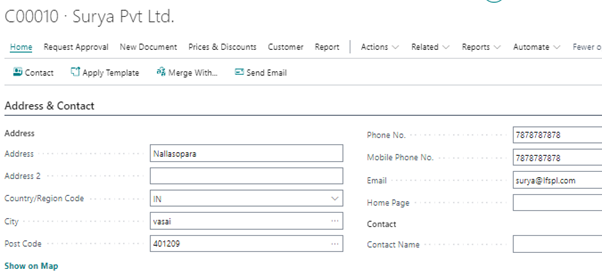
Please see C00010 Contact (Phone No., Mobile Phone No., Email) Details.
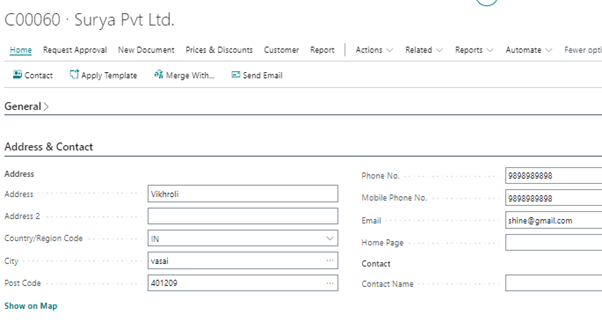
In new customer C00060 Contact (Phone No., Mobile Phone No., Email) Details are updated.
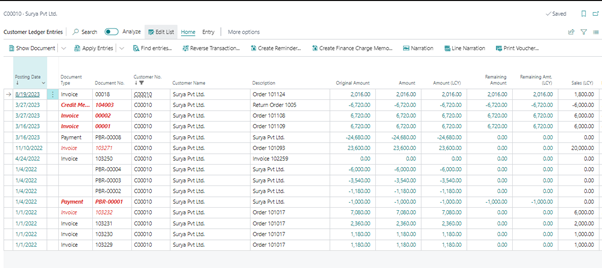
STEP 5: - When we see the Ledger details for both customer it is observed that an invoice has been booked for the newly(C00060) created customer.

STEP 6: - Now we have to merge all the updated details of C00060 in C00010 so that duplicate entries from the system will eliminate. For this we go to C00010.
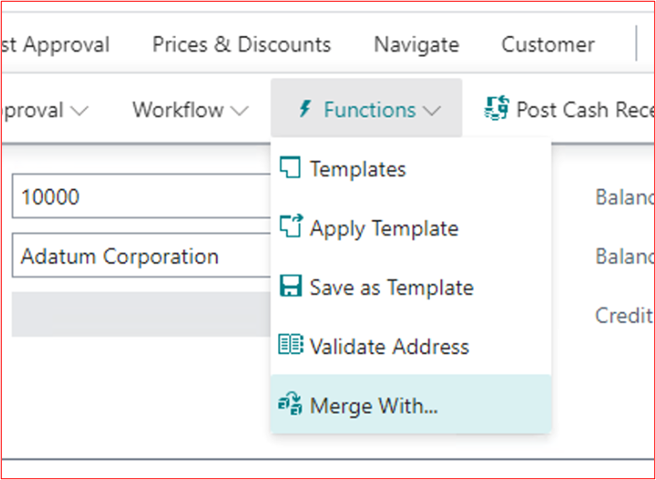
Customer Card> Actions> Functions> Merge with.
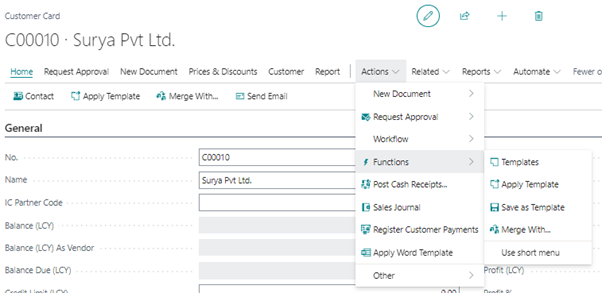
**NOTE** Please beware of the fact that we cannot undo the changes of Merging.
STEP 7: - When we click on “Merge With” a new window will open.
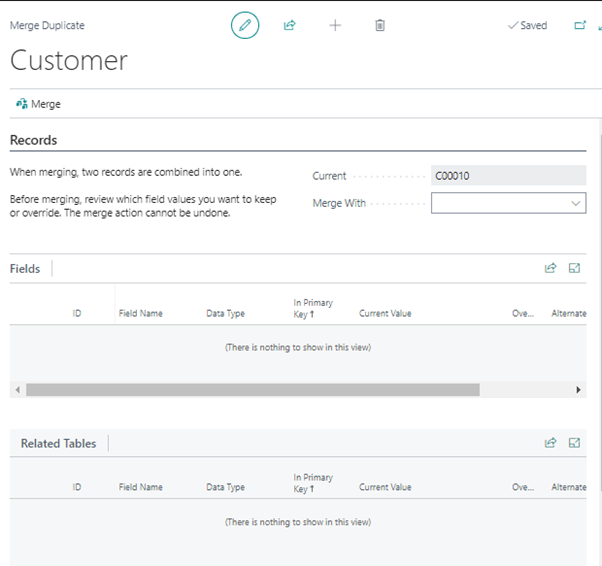
STEP 8: - Here we select the Customer No whose details we want to merge in our case C00060 in “Merge with” field.
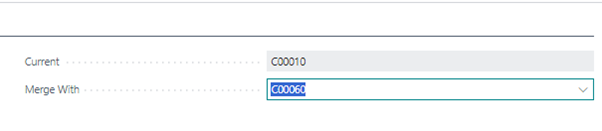
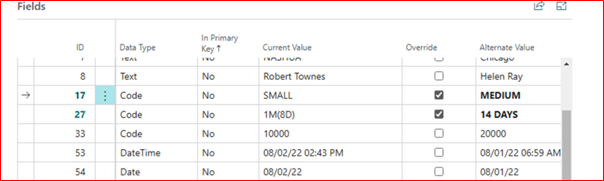
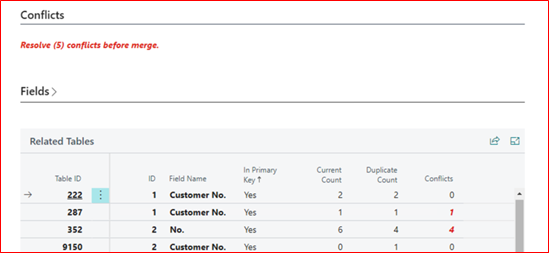
STEP 9: - System will show the comparison between the Current (C00010) customer and the merge with customer (C00060).
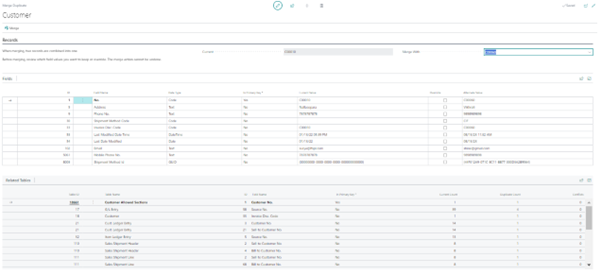
STEP 10: - Then we select the which we want to update. Here, Contact (Phone No., Mobile Phone No., Email) Details need to be updated in C00010 so we select same.
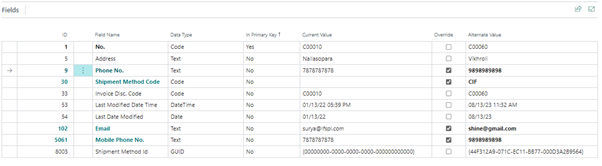
STEP 11: - Then we click on merge system will populate a message asking for confirmation.
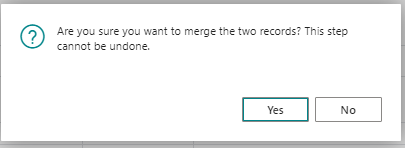
STEP 12: - We click on “YES” new message will populate.
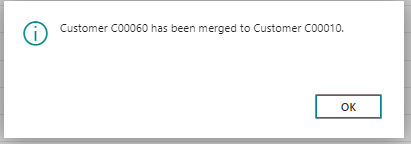
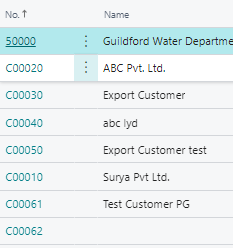
STEP 13: - Now we can see that the details of C00060 have been updated in C00010. For that we go to Customer list here we see that the C00060 has been removed and only C00010 is available.
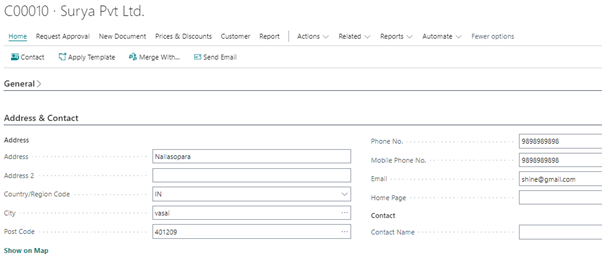
STEP 14: - Now when we go to C00010 to view the changes, firstly we go to “Address & Contact” Tab we can see that the details are updated.
STEP 15: - To view the ledger entries got updated or not we go to Ledger entries of C00010 her we can see that the details related to C00060 are merged.