🚀 Automating Job Queue Monitoring in Business Central (AL Code + Assisted Setup + Scheduling)
Complete Guide with Auto-Restart, Email Alerts & Default Job Queue Creation
Business Central’s Job Queue system is powerful but often under-used. Many organizations struggle with:
✔ Jobs failing without anyone noticing
✔ Manual restarts
✔ No automated reporting
✔ No configuration UI for non-technical users
So in this project, we built a Unified Job Queue Manager module that combines:
🔄 Auto-Restart of Failed Job Queue Entries
✉️ Email Notification of Job Queue Status
⚙️ Automatic Creation of Default Job Queue Entries
🧩 Assisted Setup Wizard for Non-Technical Users
📅 Automatic Scheduling of Jobs via Job Queue
🔐 Permission set for Secure Access
All logic is packaged into a clean AL extension.
🧱 Architecture Overview
Unified Job Queue Setup (Table 80001)
- Email settings
- Monitoring frequency
- Auto-restart frequency
- Default job queue creation flag
▼
Assisted Setup Page (80002)
User chooses:
✔ Email alerts
✔ Frequency
✔ Auto-restart
▼
Job Queue Setup Handler (CU 80003)
- Creates job queue entries
- Updates schedule
- Applies settings
▼
Unified Job Queue Manager (CU 80000)
- Sends email report
- Auto-restarts jobs
- Helper: CreateJobQueue
✨ Key Features
1. Auto-Restart Failed Job Queue Entries
A background job checks for entries with Status = Error, clears error message, resets to Ready, and sends a notification.
2. HTML Email Summary of Job Queues
A scheduled codeunit sends a table-format HTML email showing:
• Object ID
• Description
• Status
• Last Ready Time
• Earliest Start Date/Time
Useful for finance/operations teams.
3. Automatic Job Queue Creation
The system auto-generates standard job queue entries on install or via setup:
• Auto Restart Job
• Email Monitoring Job
• Custom modules (Get Grants Job, Get Batch Job, etc.)
4. Assisted Setup Wizard
A guided configuration page allows non-technical users to:
• Enable/Disable email monitoring
• Enter email recipients
• Set frequency
• Enable/Disable auto-restart
• Apply the configuration
5. Scheduling Support
The system registers job queue entries automatically based on setup values.
6. Permissions
A custom permissionset controls access to setup and codeunits.
📝 Real Business Scenario
Imagine a company where Job Queues regularly fail:
• Integration jobs
• E-Invoice processing
• EXIM processing
• Posting jobs
• Custom automations
Without monitoring, these failures can halt operations.
With this module:
✔ Admins get daily status email
✔ Jobs auto-restart
✔ No error goes unnoticed
✔ Everything configurable from Assisted Setup
📌 How It Works (Step-by-Step)
➡ Step 1 – User opens Assisted Setup
From role center:
Assisted Setup → Unified Job Queue Setup
User configures:
• Daily Email Report → Enabled
• Email Frequency → 1440 mins
• Auto-Restart Failed Jobs → Enabled
• Restart Frequency → 5 mins
➡ Step 2 – System creates Job Queue Entries
Examples:
• CU 80000 → SendMail
• CU 80102 → AutoRestart
• Any custom jobs you want
➡ Step 3 – Email arrives daily
Containing a neatly formatted table showing all job queues and their status.
➡ Step 4 – Failed Jobs Auto-Restart
Every 5 minutes, the system auto-clears and restarts failed entries.
📷 Screenshots in this Module
You referenced these images:
📌 SendMail HTML Email Job
(Displays job queue entries inside a table)
📌 Create Default Job Queue Entries
(Creates a predefined list on installation)
📌 Auto Restart Job Queue Codeunit
(Resets status & sends notification)
All these are integrated into one unified module in the final code unit.
🎯 Benefits for Clients / End-Users
Feature — Benefit
Auto Restart — Zero manual intervention
Email Alerts — Visibility of Job Queue health
Assisted Setup — Non-technical configuration
Auto Scheduling — Hassle-free monitoring
Permissionset — Secure access control
Centralized Manager — Single place to manage everything
📦 Deployment Strategy
1. Add extension to sandbox
2. Run Assisted Setup
3. System automatically schedules jobs
4. Verify email alerts
5. Monitor auto-restart in notification area
🎉 Final Result
You now have a complete Job Queue Monitoring Framework inside Business Central with:
✔ Auto Fix
✔ Auto Notify
✔ Auto Schedule
✔ Auto Create
✔ Assisted Setup
✔ PermissionControl
1. Unified Job Queue Setup Card
This page stores configuration values related to monitoring, email alerts, auto-restart, and schedules.
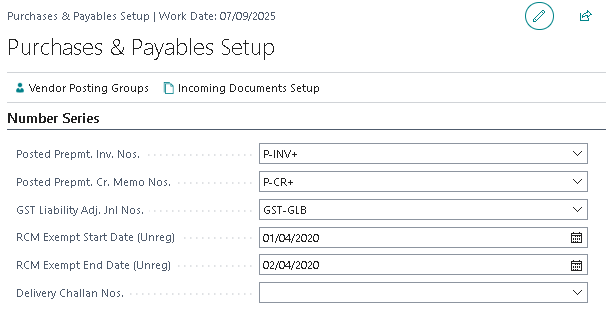
Screenshot 1 — Unified Job Queue Setup Card
2. Unified Job Queue Manager – Scheduled Background Execution
After applying setup, the system generates a Job Queue Entry that periodically executes monitoring logic.
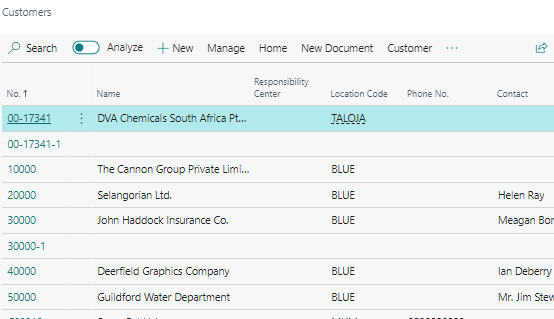

Screenshot 2 — Job Queue Entry (Unified Job Queue Manager)
3. Viewing the Complete Job Queue List
The monitoring engine reads Job Queue Entry data to analyze status, timings, and errors.
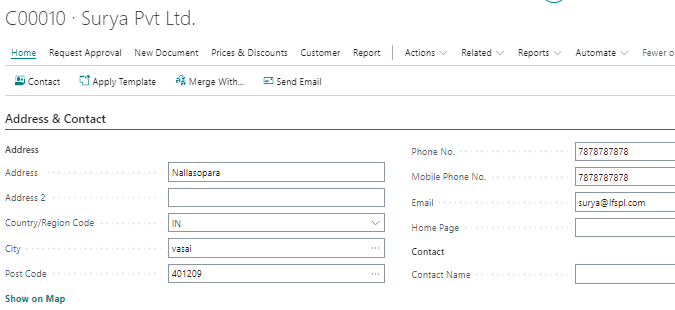
Screenshot 3 — Job Queue Entries Overview
4. Auto-Restart Job Queue Logic
If auto-restart is enabled, failed jobs are automatically restarted and errors cleared.

Screenshot 4 — Auto Restart Notifications
5. Email Output — Consolidated Job Queue Report
A scheduled email provides a report of all job queues including status and last run times.
Screenshot 5 — Job Queue Email Report
6. Updated Job Queue List After Auto-Restart
Jobs restarted by the auto-restart function appear updated in the Job Queue list.