Overview of CAPA (Corrective and Preventive Action)
What is CAPA?
CAPA (Corrective and Preventive Action) is a structured problem-solving process used in quality management systems (QMS) to identify the root cause of issues, implement corrective measures, and prevent recurrence.
In simple terms:
If something goes wrong, CAPA helps you fix it and ensure it never happens again.
Corrective Action (CA)
Corrective action focuses on resolving existing problems:
- Identify what went wrong
- determine root cause
- Implement corrective measures
- prevent recurrence
Preventive Action (PA)
Preventive action focuses on risk mitigation:
- identify potential risks
- implement controls
- prevent future issues
Where is CAPA Used?
CAPA is essential in industries where quality, compliance, and safety standards are critical.
Common industries using CAPA:
- pharmaceutical manufacturing
- medical device companies
- food & beverage production
- healthcare & hospitals
- automotive manufacturing
- aerospace & defense
- software & IT services
Any organization following a Quality Management System (QMS) relies on CAPA as a core compliance tool.
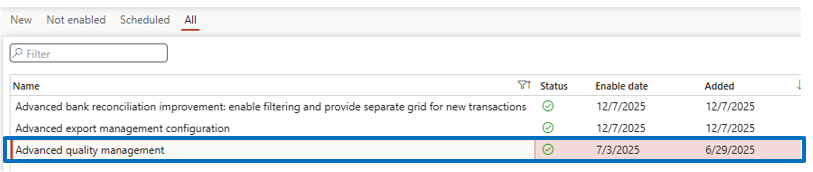
Enabling Advanced Quality Management in D365 F&O
To activate CAPA functionality:
Navigate to:
System Administration → Workspaces → Feature Management
Search for: Advanced Quality Management
Set status to Enabled
This feature enables advanced quality and compliance controls within Dynamics 365.
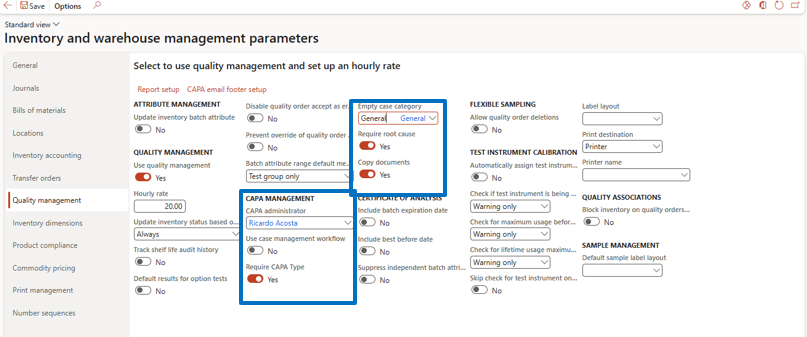
CAPA Parameter Setup
Navigate to:
Inventory Management → Setup → Inventory and Warehouse Management → Quality Management tab
Enable CAPA management options based on business requirements.
Key Parameters
CAPA Administrator
Responsible for managing the CAPA program (typically QA Head or Quality Manager).
Use Case Management Workflow
Enable to activate approval workflows.
Required CAPA Type
Ensures CAPA type is mandatory for every record.
Required Root Cause
Ensures root cause entry is mandatory.
Copy Document
Allows attachments to be copied automatically from templates or existing CAPA cases.
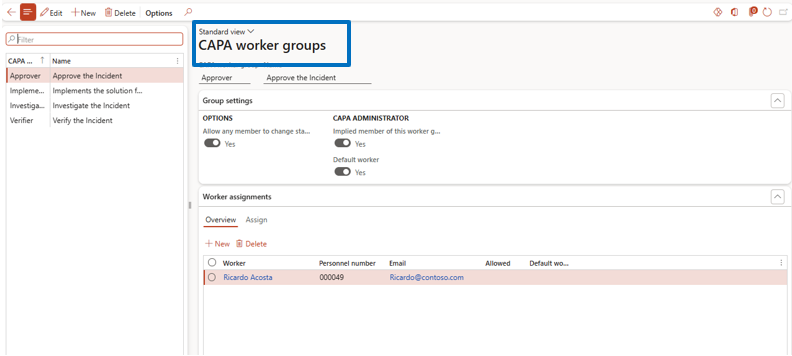
CAPA Worker Groups Configuration
Navigate to:
Inventory Management → Setup → CAPA Management → CAPA Worker Group
Create Worker Groups such as:
- Verifier
- Investigator
- Implementer
- Approver
Configuration Options:
- Assign default workers
- define workflow permissions
- allow stage advancement permissions
- enable email notifications for task assignments
This ensures efficient CAPA workflow collaboration and accountability.
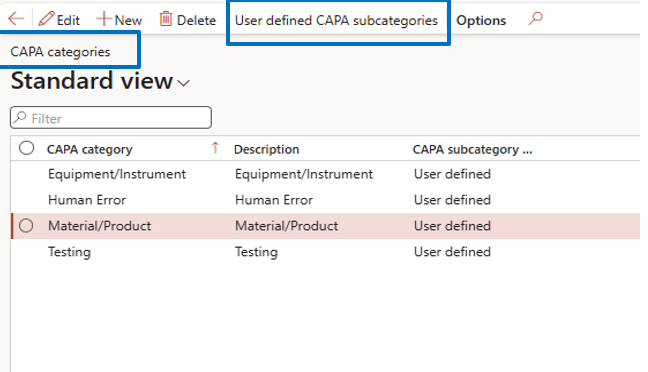
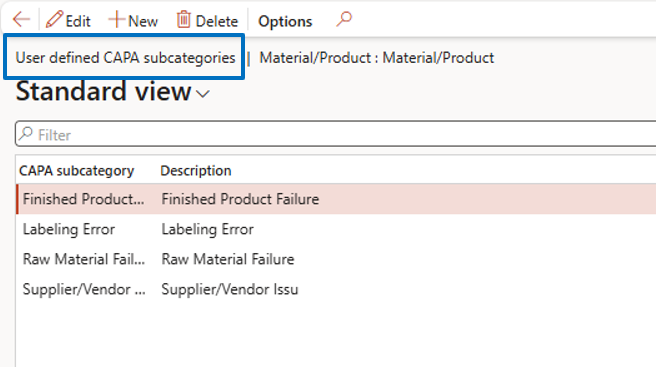
CAPA Categories & Subcategories
Navigate to:
Inventory Management → Setup → CAPA Management → CAPA Categories
- Define CAPA categories
- enable user-defined subcategories for detailed classification
This helps categorize quality issues systematically.
CAPA Types Setup
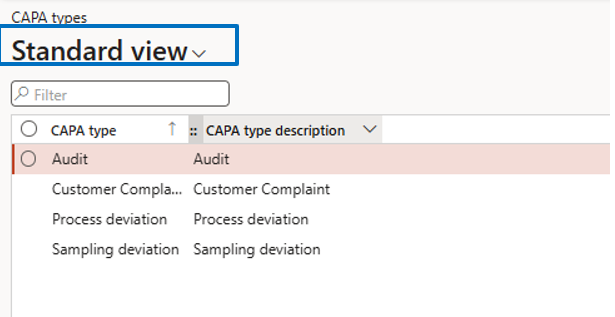
Navigate to:
Inventory Management → Setup → CAPA Management → CAPA Types
If CAPA Type is required (Yes in the parameter), then define types based on business needs for use in CAPA transactions.
Major & Minor Classification Codes
Navigate to :
Inventory management> Setup> CAPA management > CAPA types
Define severity classifications such as:
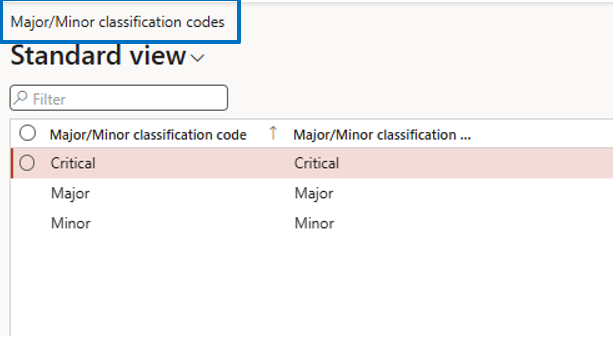
This supports risk prioritization and compliance tracking.
CAPA Root Cause Setup
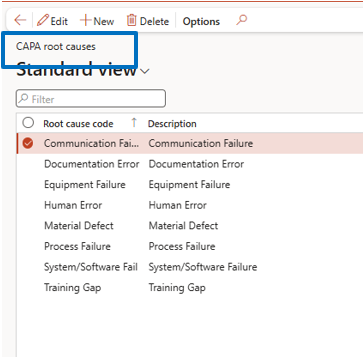
Navigate to:
Inventory Management → Setup → CAPA Management → CAPA Root Causes
If the Root Cause is required (Yes in the parameter), then define types based on business needs for use in CAPA transactions.
Define root cause categories for standardized analysis and reporting.
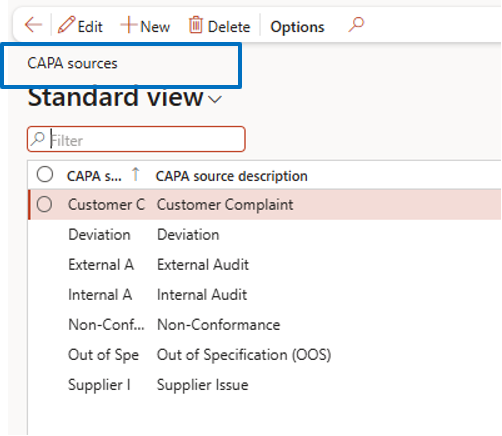
CAPA Source Setup
Define CAPA sources based on business processes, such as:
- customer complaints
- internal audits
- inspections
- production issues
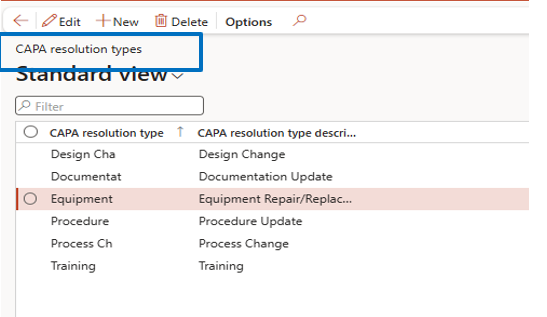
CAPA Resolution Types
Navigate to:
Inventory Management → Setup → CAPA Management → CAPA Resolution Types
Examples include:
- design change
- documentation update
- equipment repair or replacement
- process improvement
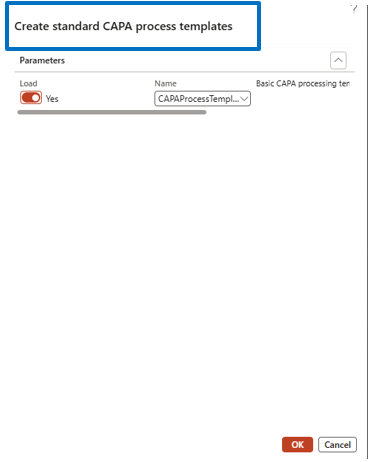
CAPA Process Template Configuration
Navigate to:
Inventory Management → Setup → CAPA Management → CAPA Process Template
Steps:
- Set Load toggle to Yes
- select default template
- Confirm to load the template into the system
Templates standardize CAPA workflows.
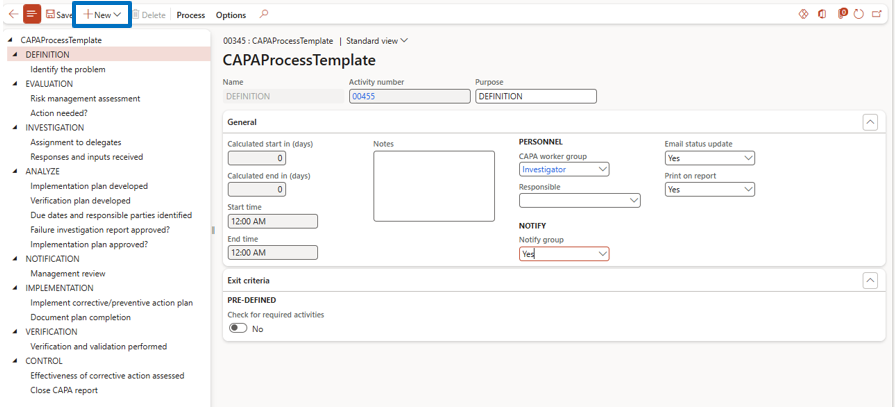
CAPA Process Setup
Navigate to:
Inventory Management → Setup → CAPA Management → CAPA Processes
Here you can:
- Click on Process → View Details. Here you will be able to see the default CAPA process flow and make any modifications to it based on your specific business requirements.
- Even in a New button, a user can add a new action, level, appointment, event, and task
CAPA Case Creation in D365 F&O
Navigate to:
Inventory Management → Workspaces → CAPA Management → +CAPA Case
OR
Inventory Management → Periodic Tasks → CAPA Management → All CAPA Cases → New
Steps:
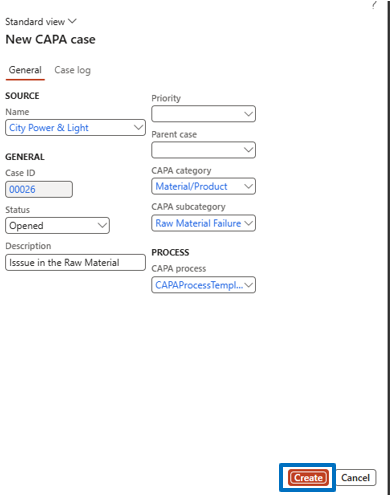
- Enter required details
- Click Create
- CAPA case is generated
Users can then update details, manage workflow stages, and track resolution progress
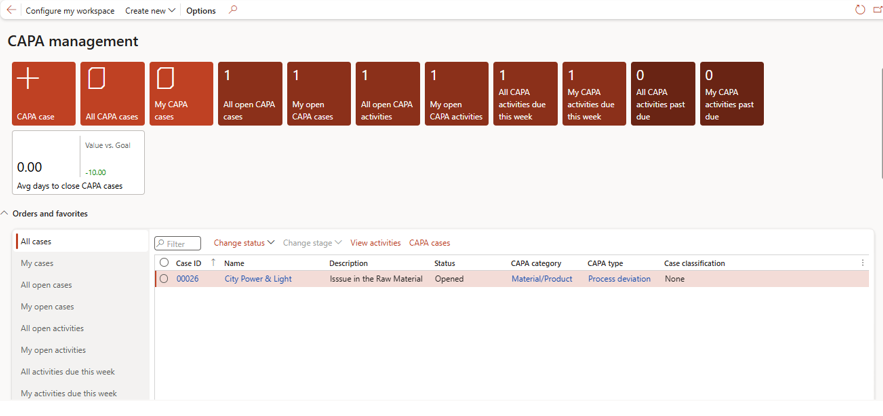
A standard CAPA case report is available:
In CAPA - Action tab → CAPA Case → Print CAPA Case
This supports audit readiness and compliance documentation.
Also, there is a graphic report available in standard format
Navigate to:
Inventory Management → Inquiries and Reports → CAPA Management → Trending Analysis
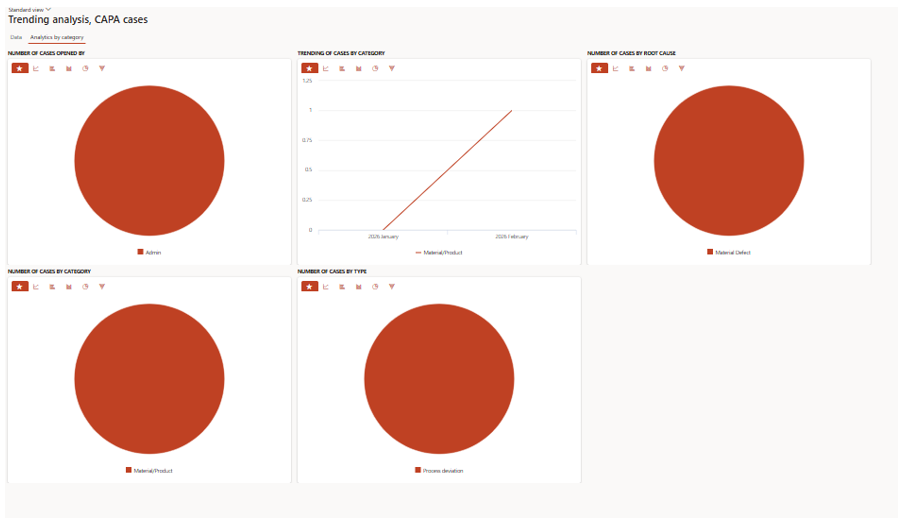
Why CAPA Management Matters in Dynamics 365 Finance & Operations
CAPA (Corrective and Preventive Action) management in Dynamics 365 Finance & Operations is more than just a quality control feature — it is a structured compliance and risk management framework integrated directly into your ERP system.
In regulated industries such as pharmaceuticals, medical devices, food processing, and manufacturing, organizations must comply with standards like ISO 9001, FDA regulations, and industry-specific quality mandates. CAPA management within Dynamics 365 F&O helps businesses maintain full documentation, traceability, and audit readiness through automated workflows and structured root cause analysis.
By leveraging CAPA workflows in Dynamics 365, organizations can:
1. Strengthen Regulatory Compliance
CAPA ensures that every issue is documented, investigated, approved, and resolved through a controlled process. With built-in tracking and reporting features, companies can easily demonstrate compliance during internal audits and external regulatory inspections.
2. Improve Root Cause Analysis and Risk Mitigation
Rather than fixing surface-level problems, CAPA in Dynamics 365 enables structured root cause identification. This reduces repeat failures, minimizes operational risks, and enhances overall process reliability.
3. Ensure Complete Audit Trail and Documentation
All actions, approvals, attachments, and status changes are recorded within the ERP system. This centralized audit trail supports governance, accountability, and transparent quality management practices.
4. Automate Quality Workflows
Through Advanced Quality Management features, organizations can configure approval hierarchies, assign investigator roles, define resolution types, and standardize process templates. This reduces manual tracking and eliminates compliance gaps.
5. Drive Continuous Improvement
CAPA trending analysis and graphical reports help identify recurring quality issues. Management can use this data to implement long-term corrective strategies and improve operational performance.
Final Thoughts
Implementing CAPA management in Dynamics 365 Finance & Operations transforms quality management from a reactive process into a proactive compliance strategy. By integrating corrective and preventive actions directly into ERP workflows, businesses can enhance product quality, reduce operational risks, ensure regulatory compliance, and maintain continuous improvement standards.
Organizations that fully utilize CAPA functionality within Dynamics 365 F&O gain stronger governance, better visibility into quality metrics, and improved readiness for audits and regulatory assessments.
FAQs
CAPA (Corrective and Preventive Action) in Dynamics 365 Finance & Operations is a quality management process used to identify issues, fix root causes, and prevent problems from recurring.
2. What is the purpose of CAPA management?
CAPA management helps organizations improve quality, ensure compliance, reduce risks, and prevent repeated operational issues.
3. What is the difference between corrective action and preventive action?
Corrective action fixes problems that have already occurred, while preventive action identifies potential risks and prevents issues before they happen.
4. Which industries benefit from CAPA management?
Industries such as pharmaceuticals, manufacturing, food processing, healthcare, automotive, and aerospace use CAPA to maintain quality and regulatory compliance.
5. How does CAPA improve quality and compliance?
CAPA ensures root cause analysis, corrective measures, and documented workflows, helping organizations meet regulatory standards and maintain consistent quality.
6. How do you enable CAPA in Dynamics 365 Finance & Operations?
CAPA functionality can be enabled by activating the Advanced Quality Management feature in Feature Management. After enabling it, users can configure CAPA parameters, worker groups, categories, types, and process templates from the Inventory Management module.
7. How is CAPA workflow managed in Dynamics 365?
CAPA workflow in Dynamics 365 F&O allows organizations to assign investigators, verifiers, and approvers. Each CAPA case moves through defined workflow stages with approval controls, notifications, and audit tracking.
8. Can CAPA cases be tracked and reported in Dynamics 365?
Yes, Dynamics 365 provides standard CAPA reports and trending analysis dashboards. Users can print CAPA case reports and access graphical trend analysis to monitor recurring quality issues and compliance performance.
9. What is the role of root cause analysis in CAPA?
Root cause analysis in CAPA helps identify the underlying reason behind a quality issue. In Dynamics 365, predefined root cause categories ensure structured documentation and prevent repeat incidents.
10. Is CAPA mandatory for regulatory compliance?
In regulated industries such as pharmaceuticals and medical devices, CAPA is often required to meet ISO, FDA, and other quality standards. Implementing CAPA in an ERP system like Dynamics 365 helps maintain compliance documentation and audit readiness.
11. What is the full form of CAPA?
CAPA full form is Corrective and Preventive Action, widely used in quality management systems and ERP platforms like Microsoft Dynamics 365 Finance & Operations.