Prepayment
Prepayment is used when, you require your customer to submit payment before you ship an order to them, or your vendor requires that you make the payment before you receive the order from them.
Set up prepayments
Before doing any prepayment invoice, we must do setup for the prepayment account in general posting setup and setup no. series for prepayment document.
You can also define default prepayment % for an Item, customer or vendor. You can also prioritize the prepayment %, to determine which prepayment % has the priority.
To add prepayment accounts to the General Posting setup
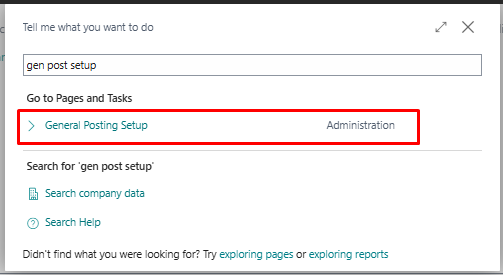
Choose the icon , look for General Posting Setup and select the related link.
On the General Posting Setup select the Sales Prepayments Account and Purchase Prepayments Account.
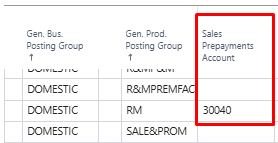
To add prepayment no. series for Prepayment documents
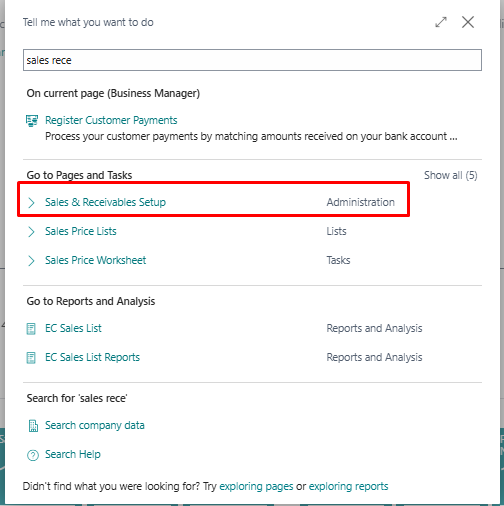
Choose the icon , look for Sales & Receivable setup and select the related link.
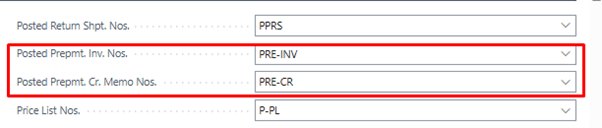
On the Sales & Receivable page, On the no series fasTab select the Posted Prepmt. Inv. Nos. and Posted Prepmt. Cr. Memo Nos.
Choose the icon , look for Purchase & payable setup and select the related link.
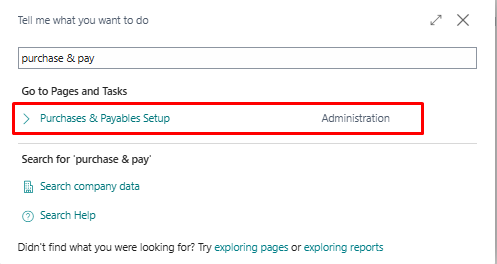
On the Purchase & Payable page, On the number series fasTab select the Posted Prepmt. Inv. Nos. and Posted Prepmt. Cr. Memo Nos.
To setup prepayment % for Item, Customer and Vendor.
To an item you define prepayment % for all the customers, a specific customer or a customer price group.
Choose the icon , look for Item and select the related link.
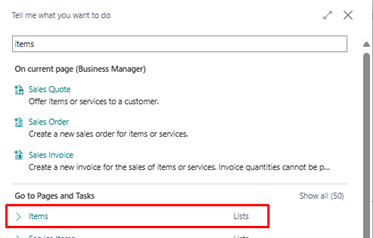
Select the item and choose the Prepayment percentages action. In case of sales, go to sales action and in case of purchase go to purchase action.
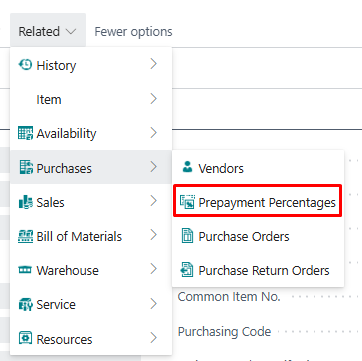
On the prepayment page, add prepayment percentages
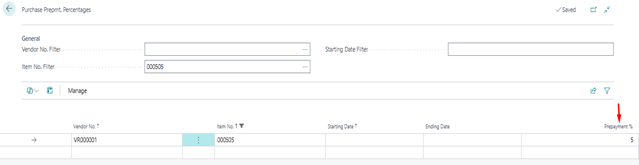
Create prepayment invoices
You can start prepayment process when you create a sales order or purchase order.
To create prepayment invoices
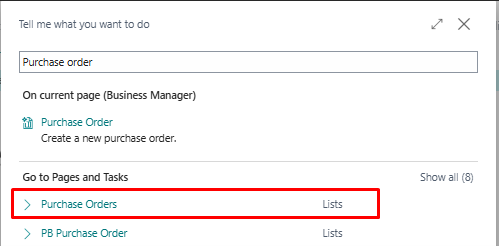
Choose the icon , look for purchase order and select the related link.
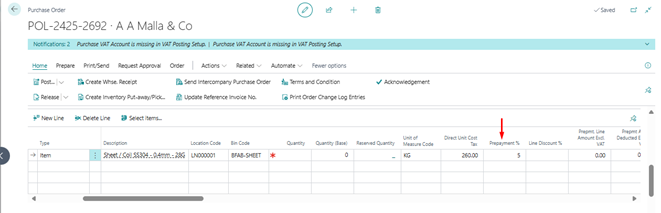
Select the vendor and when you will select the item prepayment % will automatically appear.
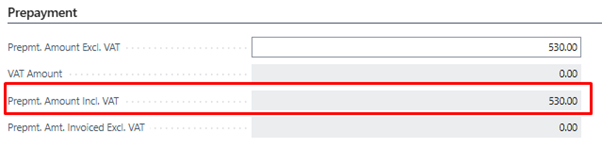
After adding quantity and unit price, you can see prepayment amount will automatically get calculated.

If you have multiple lines and you want apply the prepayment % to all the lines, you can add prepayment % in the prepayment FasTab.

To view the total prepayment amount, choose the Statistics action and check the prepayment FasTab.
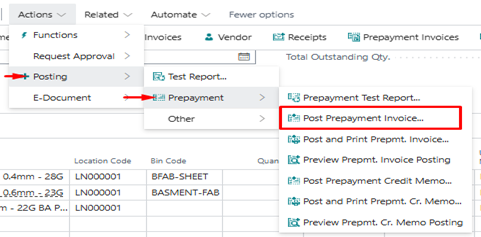
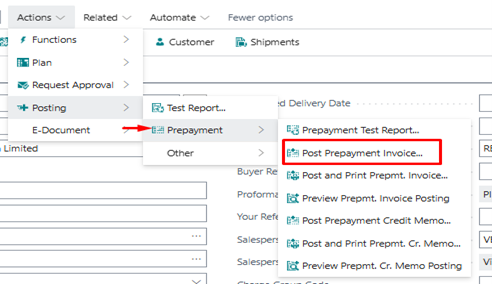
To post the prepayment invoice, choose the prepayment action and choose post prepayment invoice action.
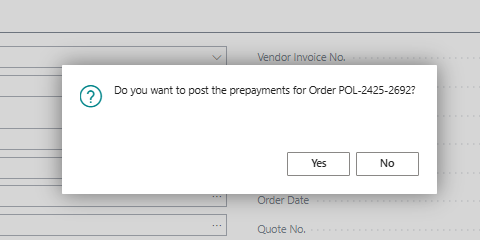
When you click on the post button you will get popup of to confirm the posting. Click on the yes button and invoice will get posted.
Now you can see the posted prepayment invoice. Click on the prepayment invoice button.

If check the G/L account, the prepayment account will be debited and sundry account will be credited.

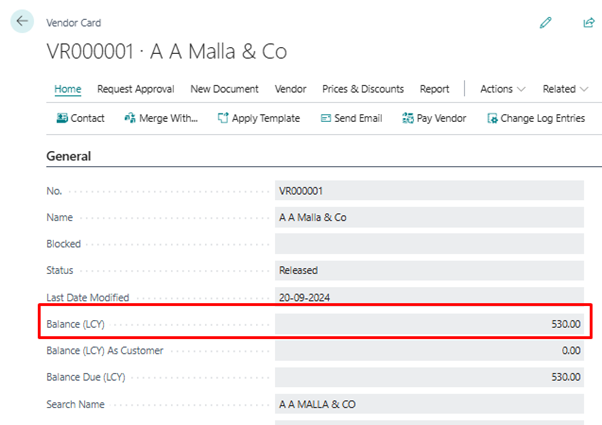
At the vendor level we can see the liability.
Prepayments are used in various scenarios to manage cash flow and ensure financial efficiency.
For example:
Supplier Deposits: When businesses need to pay suppliers in advance to secure raw materials or products.
Progress Payments: For long-term contracts where payments are made based on the progress of work completed by the vendor.
Prepayment process in sales order is same as purchase order. In case of sales order, we define default prepayment % for the customers and create a sales order. The prepayment % field is available at the sales line level. After selection of item, the prepayment % appear automatically in the field and prepayment amount get calculated.
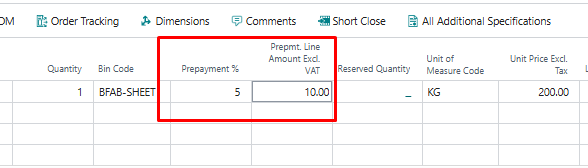
Same as purchase order, you can also define prepayment % at the header level.

Same as purchase order, we can also see the prepayment amount in the statistics.
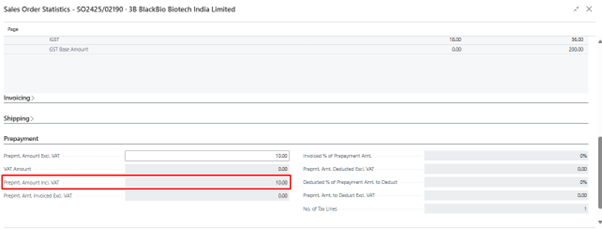
To post, click on the post prepayment invoice button and document will get posted.
Now, we can check the posted prepayment invoice.
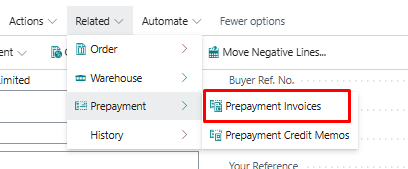
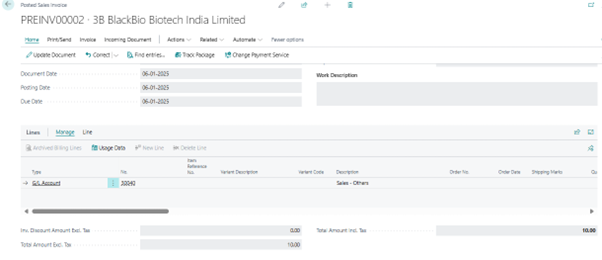
On the customer page we can see the balance for the prepayment.

If look at the G/L entry of the prepayment, prepayment account is credited and customer account is debited.
Prepayments are used in various scenarios to manage cash flow and ensure financial efficiency.
For example:
Advance Payments: When customers are required to pay a portion of the total invoice amount before the goods or services are delivered.
Milestone Payments: For projects or contracts where payments are made at specific milestones or stages of completion.