Today we discuss about how to set External Document No./Vendor Invoice No. as mandatory in Business Central.
You can enter external document numbers for customers and vendors in all sales and purchase orders, invoices, and credit memos. For example,
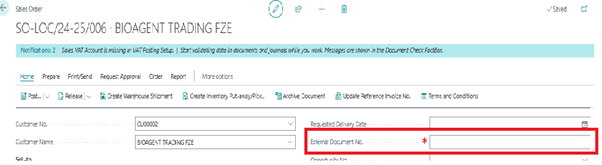
On the Sales Order: External Document No.
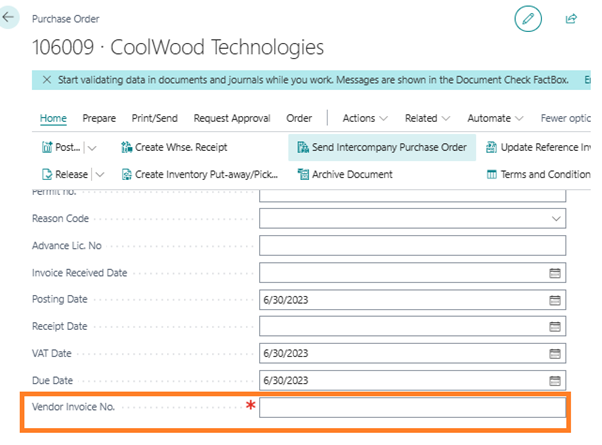
On the Purchase Order: Vendor Invoice No. (With a red asterisk)
We can use these numbers to search for posted sales and purchase lines later.
Let have some scenarios
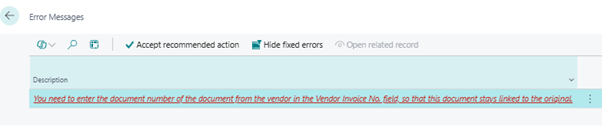
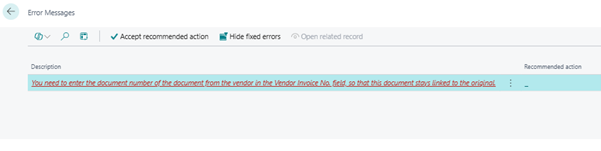
We have Enabled Ex doc no mandatory in setup, but here we are not inserting it in Purchase order.
We see that we get an error.
To make them mandatory the process is very easy we have to do set up in both Sales & Receivables Setup and Purchases & Payables Setup.
Sales & Receivables Setup: Not enabled by default
Ext. Doc. No. Mandatory
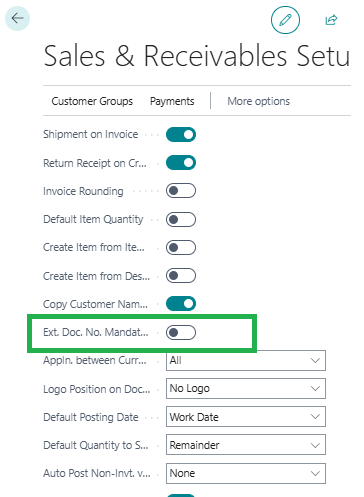
Specifies if it is mandatory to enter an external document number in the External Document No. field on a sales header or the External Document No. field on a general journal line.
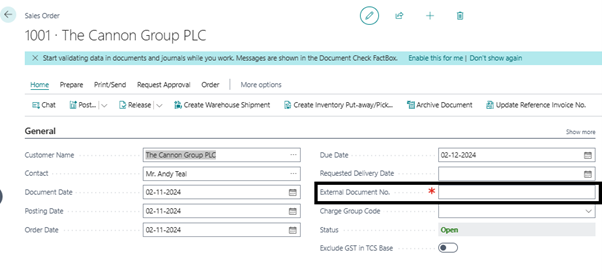
If we enable this setting in Sales & Receivables Setup, you can see a red asterisk in front of the External Document No., just like in Purchase Order.
Purchases & Payables Setup: Enabled by default
Ext. Doc. No. Mandatory
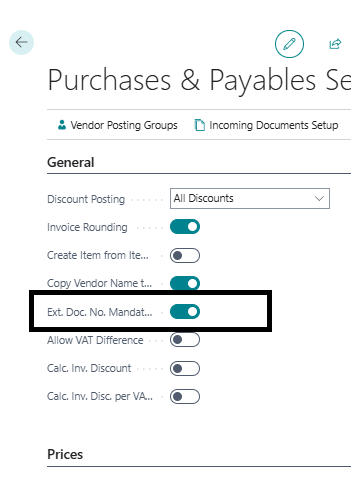
Specifies if it is mandatory to enter an external document number in the External Document No. field on a purchase header or the External Document No. field on a general journal line.
It is to be noted that this field value is checked when we do posting on the respective document.
Here on sales order we left the field blank,
During Posting
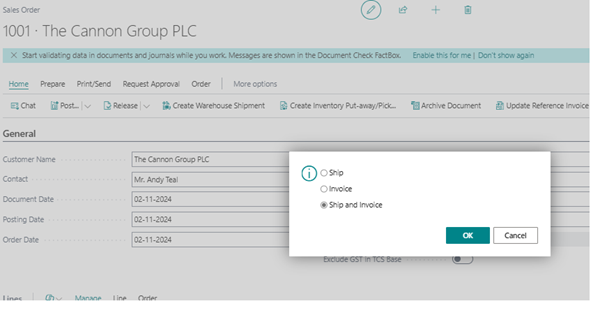
now when we do posting we will get error
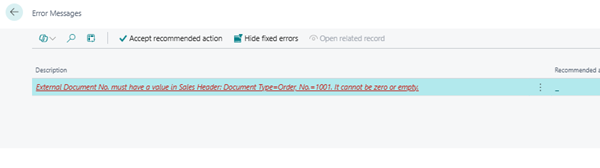
The error message on the Purchase Order is more user-friendly……
This will also affect the General Journal.
We will get this error on the General Journals while posting the sales invoice
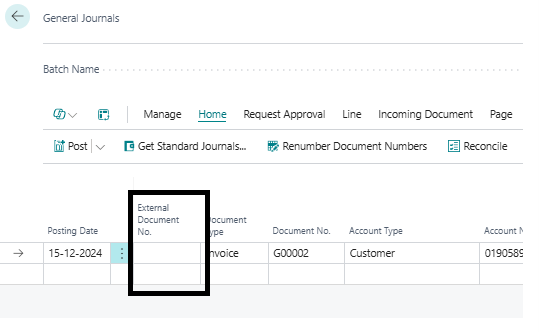
If we leave the field blank we will get error
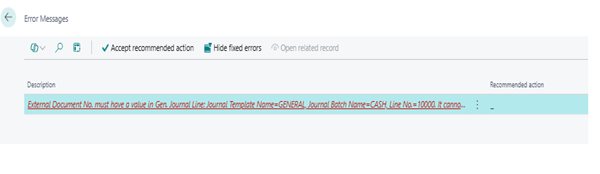
So if you post an invoice through the General Journal, please add this field to the page first. It is hidden by default.
It is also important to note that Business Central does not check if these external document numbers are unique or duplicates. So this requires some simple customization if you need this control.