Cash flow is one of the most important aspects of effective financial management. A business may be profitable, but maintaining sufficient cash is essential for meeting supplier payments, employee salaries, taxes, loan obligations, and other operating expenses.
At Leaping Frog Solutions, we help businesses leverage Microsoft Dynamics 365 Business Central to streamline financial processes and improve business visibility. One of the capabilities that can support better financial planning is Cash Flow Forecasting.
Cash Flow Forecast in Business Central helps finance teams estimate future cash inflows and outflows by bringing together information from areas such as customer receivables, vendor payables, sales orders, purchase orders, budgets, and manual cash transactions.
What Is Cash Flow Forecasting in Business Central?
Cash Flow Forecasting in Microsoft Dynamics 365 Business Central provides organizations with greater visibility into their expected future cash position.
By analyzing expected inflows and outflows, finance teams can identify potential cash shortages, plan upcoming payments, and make more informed financial decisions.
What Can Cash Flow Forecasting Help You Do?
Businesses can use cash flow forecasting to:
- Monitor expected cash balances over a selected period
- Identify potential cash shortages or surplus funds
- Improve liquidity and working capital planning
- Plan upcoming payments and cash requirements
- Support financial and operational decision-making
How to Set Up Cash Flow Forecast in Business Central
The Cash Flow Forecast process involves configuring the required setup, creating Cash Flow Accounts, entering manual cash movements, generating the forecast, and reviewing the resulting worksheet entries.
Step 1 — Open Cash Flow Setup
Before creating a forecast, configure the Cash Flow Setup.
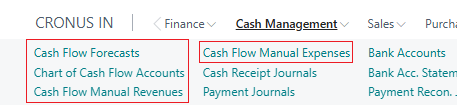
Navigation:
Tell Me → Cash Flow Setup
The setup page allows administrators to define key parameters used by Business Central for cash flow forecasting.
Set the Automatic Update Frequency
The Automatic Update Frequency determines how often the cash flow forecast is automatically updated.
Available options include:
- Daily — Updates the forecast every day
- Weekly — Updates the forecast once a week
- Never — Requires manual updates
If the forecast is configured to appear on the Role Centre, the relevant forecast can be used for automatic updates.
Select the Cash Flow Account
Under the Account FastTab, select the relevant Cash Flow Account No. created in the Chart of Cash Flow Accounts.
Configure Number Series
Under the Numbering FastTab, define the Cash Flow Forecast No. Series used to identify cash flow forecasts.
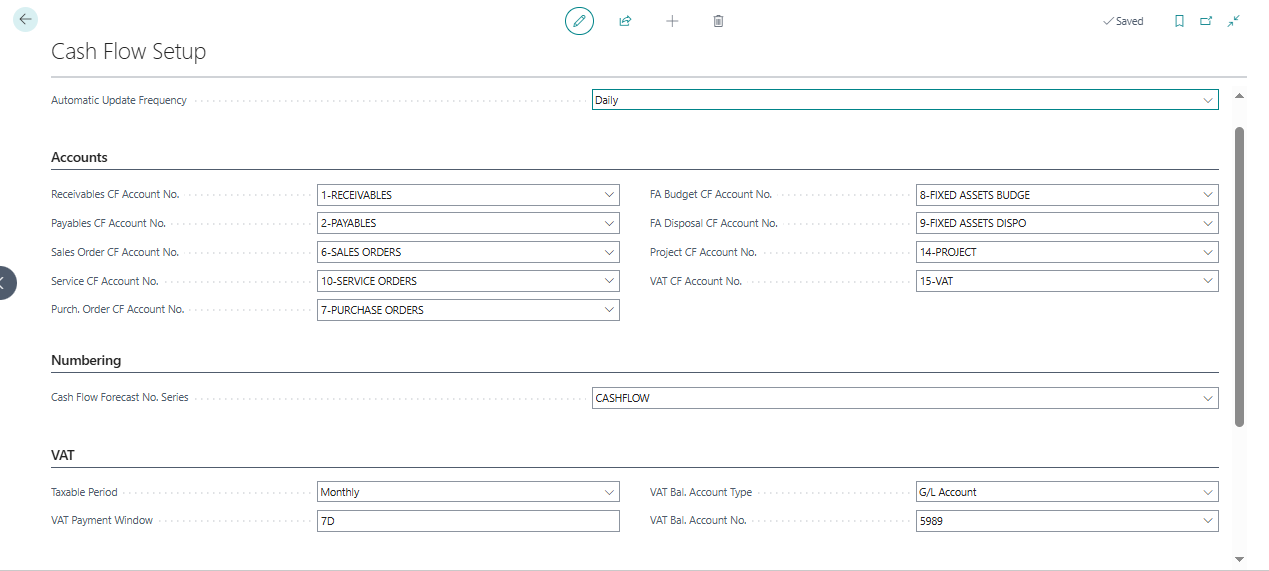
Configure VAT Information
If VAT is applicable to your setup, enter the required information under the VAT FastTab.
Step 2 — Create Cash Flow Accounts
Cash Flow Accounts help organize the information used in cash flow forecasting.
Navigation:
Tell Me → Chart of Cash Flow Accounts
Select New to create a Cash Flow Account.
Key Cash Flow Account Fields
Depending on your Business Central configuration, relevant fields may include:
- No. — Unique identifier for the cash flow account
- Name — Name of the cash flow account
- Account Type — Defines the purpose or type of the account
- Totalling — Defines the accounts or account ranges included in the total
- G/L Integration — Determines whether General Ledger information is included
- G/L Account Filter — Filters the G/L accounts included in the forecast
- Source Type / Source No. — Identifies relevant source information where applicable
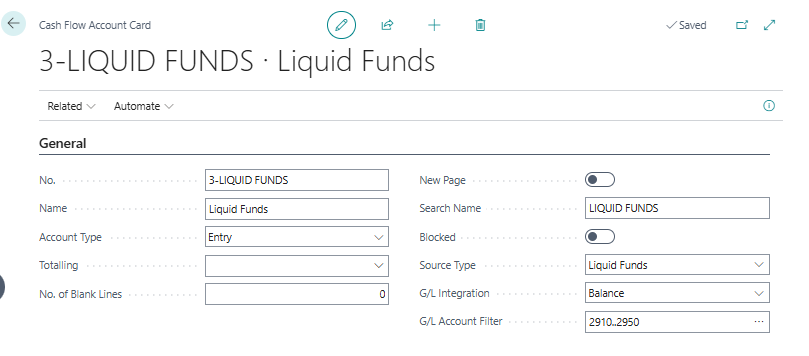
The exact fields and available options may vary depending on your Business Central version and configuration.
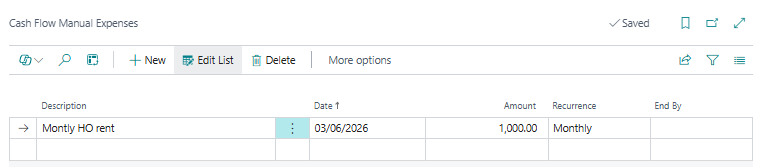
Step 3 — Add Manual Revenues and Expenses
Not every expected cash movement originates from standard Business Central transactions.
Businesses may also have planned receipts and payments that need to be included in the cash flow forecast.
Examples of Manual Revenues
Examples include:
- Rental income
- Interest income
- Capital injections
- Insurance claims
Examples of Manual Expenses
Examples include:
- Salaries
- Loan repayments or interest
- Planned investments
- Capital expenditures
- One-time operational expenses
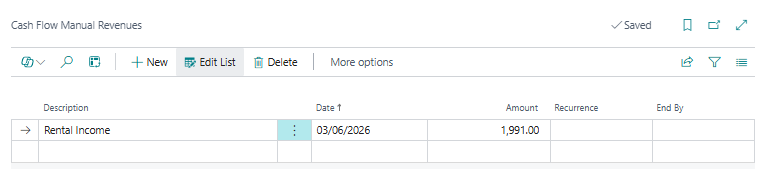
To add a manual revenue or expense, select New and enter the relevant details.
Key fields can include:
- Description
- Date
- Amount
- Recurrence
- End By
For example, if an expense occurs every month, a recurrence formula such as 1M can be used where applicable.
H2: Step 4 — Create a Cash Flow Forecast
Once the setup and required Cash Flow Accounts are configured, create the forecast.
Navigation:
Tell Me → Cash Flow Forecasts
Select New to create a Cash Flow Forecast.
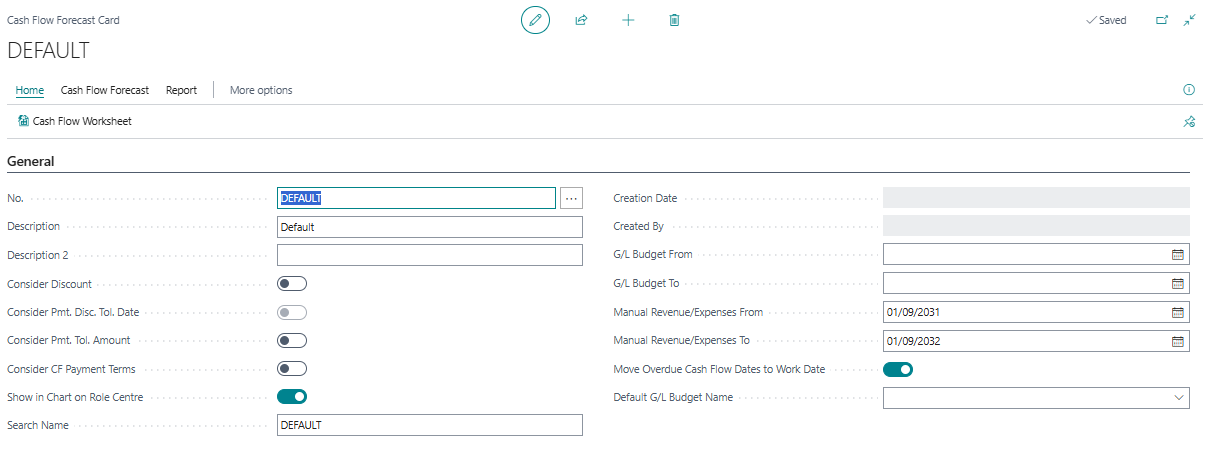
H3: Configure the Cash Flow Forecast
Depending on your requirements, key settings may include:
- No.
- Description
- Consider Discount
- Consider Payment Discount Tolerance Date
- Consider Payment Tolerance Amount
- Consider Cash Flow Payment Terms
- Show in Chart on Role Centre
- G/L Budget From
- G/L Budget To
- Manual Revenue/Expenses From
- Manual Revenue/Expenses To
- Default G/L Budget Name
These settings determine which information Business Central considers when calculating the forecast.
H2: Step 5 — Generate Cash Flow Worksheet Lines
After configuring the Cash Flow Forecast, open the Cash Flow Worksheet.
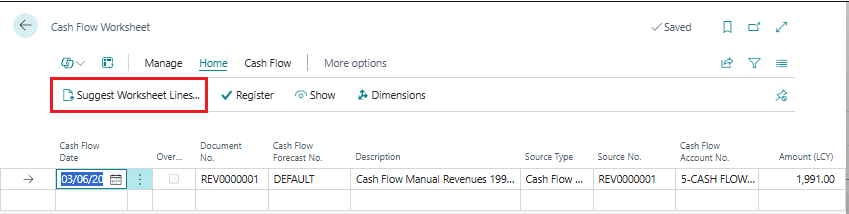
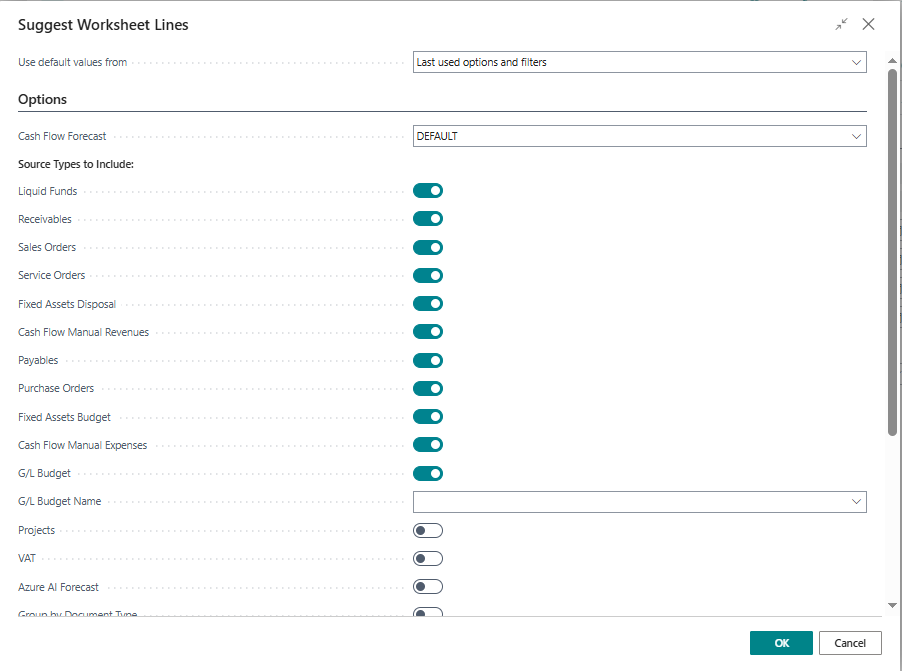
Select Suggest Worksheet Lines.
A request page will open where you can apply the relevant filters.
Adjust the filters according to your forecasting requirements and select OK.
Business Central will generate the relevant Cash Flow Worksheet Lines based on the configured setup and available data.
H2: Step 6 — Review and Register the Cash Flow Forecast
Before registering the forecast, review the generated worksheet lines carefully.
Check:
- Expected cash inflows
- Expected cash outflows
- Forecast dates
- Amounts
- Cash flow categories
- Manual revenue and expense entries
- Budget-related values
Once the forecast data has been reviewed and validated, register the worksheet.
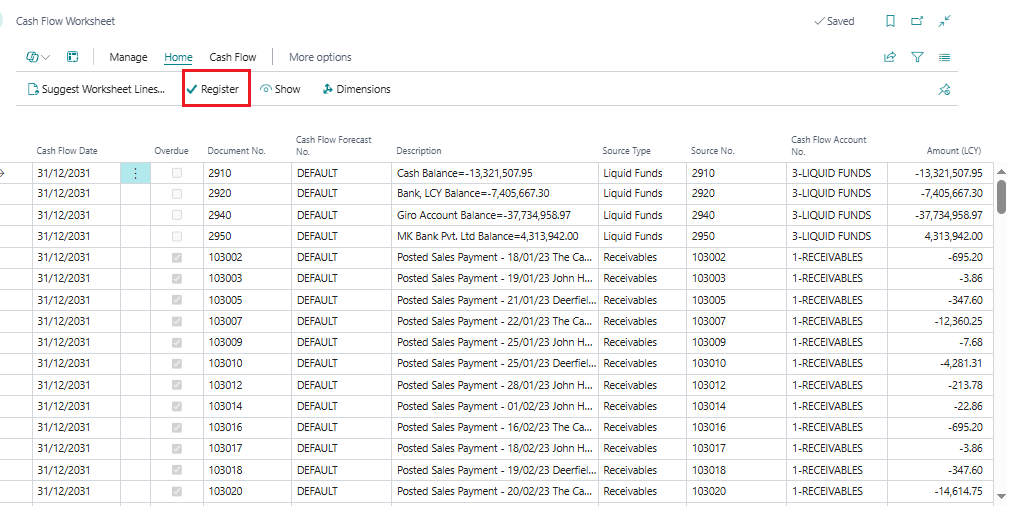
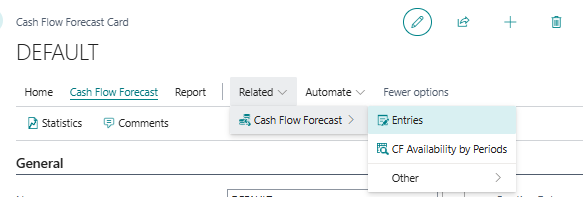
You can then navigate to Entries on the Cash Flow Forecast Card to review the registered cash flow entries.
H2: Common Mistakes in Cash Flow Forecasting
A cash flow forecast is only as reliable as the data and assumptions behind it. Businesses should avoid these common mistakes.
1. Using Incorrect Customer and Vendor Payment Terms
Payment terms and due dates influence when Business Central expects cash to be received or paid.
Best Practice:
Regularly review customer and vendor payment terms to improve forecast accuracy.
2. Ignoring Manual Cash Movements
Planned transactions such as salaries, loan payments, investments, rental income, and interest expenses may not be captured through standard receivables or payables.
Best Practice:
Include relevant manual revenues and expenses in the Cash Flow Forecast.
3. Not Updating the Forecast Regularly
New invoices, sales orders, purchase orders, and changes in payment schedules can affect the expected cash position.
Best Practice:
Update or recalculate the forecast regularly, particularly before management reviews and financial planning activities.
4. Registering Worksheet Lines Without Reviewing Them
Registering generated worksheet lines without proper validation can result in inaccurate forecast information.
Best Practice:
Review worksheet lines and verify significant cash inflows and outflows before registration.
5. Treating Cash Flow Forecasting as a One-Time Activity
Cash flow forecasting should be an ongoing financial management process rather than a one-time reporting exercise.
Best Practice:
Compare forecasted cash movements with actual results regularly and refine assumptions when required.
Benefits of Cash Flow Forecasting in Business Central
A structured cash flow forecasting process can help organizations:
- Improve visibility into future liquidity
- Identify potential cash shortages earlier
- Plan upcoming payments more effectively
- Understand expected cash inflows
- Support working capital management
- Improve financial decision-making
- Reduce reliance on manual cash flow calculations
Frequently Asked Questions About Cash Flow Forecast in Business Central
What is Cash Flow Forecast in Business Central?
Cash Flow Forecast in Business Central helps organizations estimate future cash inflows and outflows using information from areas such as receivables, payables, orders, budgets, and manual cash transactions.
How do I create a Cash Flow Forecast in Business Central?
Use Tell Me to open Cash Flow Forecasts, select New, configure the forecast settings, open the Cash Flow Worksheet, and use Suggest Worksheet Lines to generate forecast data.
What data does Business Central use for cash flow forecasting?
Depending on the configuration, Business Central can use information from customer and vendor ledger entries, sales and purchase documents, General Ledger budgets, and manual cash flow entries.
Can I add manual expenses to a Cash Flow Forecast?
Yes. Manual revenues and expenses can be added to include planned cash movements that are not generated through standard Business Central transactions.
How often should a Cash Flow Forecast be updated?
The forecast should be updated regularly based on how frequently the organization's cash position changes. Business Central also provides automatic update options such as daily or weekly, depending on the configuration.
Why is Cash Flow Forecasting important for businesses?
Cash flow forecasting helps businesses understand their expected future liquidity, anticipate potential cash shortages, plan payments, and make more informed financial decisions.
Final Takeaway
Profitability tells you how your business is performing. Cash flow tells you whether you can meet your financial commitments when they are due.
With Cash Flow Forecasting in Microsoft Dynamics 365 Business Central, finance teams can bring together expected receivables, payables, budgets, orders, and manual cash movements to gain better visibility into their future cash position.
The basic process is:
Configure Cash Flow Setup → Create Cash Flow Accounts → Add Manual Cash Movements → Create Forecast → Generate Worksheet Lines → Review → Register
When maintained regularly and supported by accurate financial data, Cash Flow Forecasting can become a valuable tool for liquidity planning, working capital management, and proactive financial decision-making.
Leaping Frog Solutions helps businesses make better use of Microsoft Dynamics 365 Business Central to streamline finance processes, improve visibility, and support smarter business operations.