If your Accounts Receivable (AR) team is still sending payment reminders manually, you're spending valuable time on a process that Microsoft Dynamics 365 Business Central can help streamline.
Following up on overdue invoices through emails, Excel trackers, and manual reminders can make it difficult to maintain consistency and ensure that every customer is contacted at the right time.
With Business Central payment reminders, businesses can define reminder policies, configure escalation levels, identify overdue customer transactions, and issue reminders through a structured process.
In this guide, we'll walk you through how to set up and send payment reminders in Business Central in 5 steps.
What Are Payment Reminders in Business Central?
Payment reminders in Microsoft Dynamics 365 Business Central are used to notify customers about overdue payments.
Businesses can configure reminder rules based on factors such as:
- Overdue payment periods
- Reminder levels
- Grace periods
- Minimum outstanding amounts
- Interest
- Additional fees
The basic process is:
Set Up Reminder Terms → Configure Reminder Levels → Assign Terms to Customers → Create Reminders → Issue & Send
Once configured, this process can reduce repetitive manual work for AR teams and help standardize customer payment follow-ups.
Step 1 — Set Up Reminder Terms in Business Central
Reminder Terms define the rules that Business Central uses when generating customer payment reminders.
They establish the overall reminder policy, including the number of reminders, minimum outstanding amount, and whether interest or additional charges should be applied.
How to Set Up Reminder Terms
Navigation:
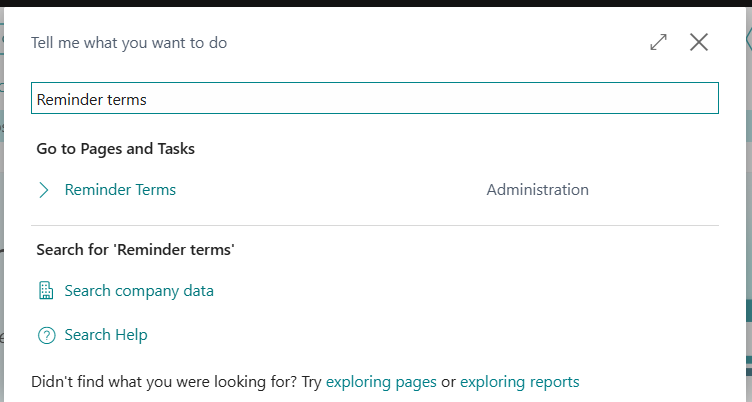
Global Search → Search "Reminder Terms" → Open the page → Select New
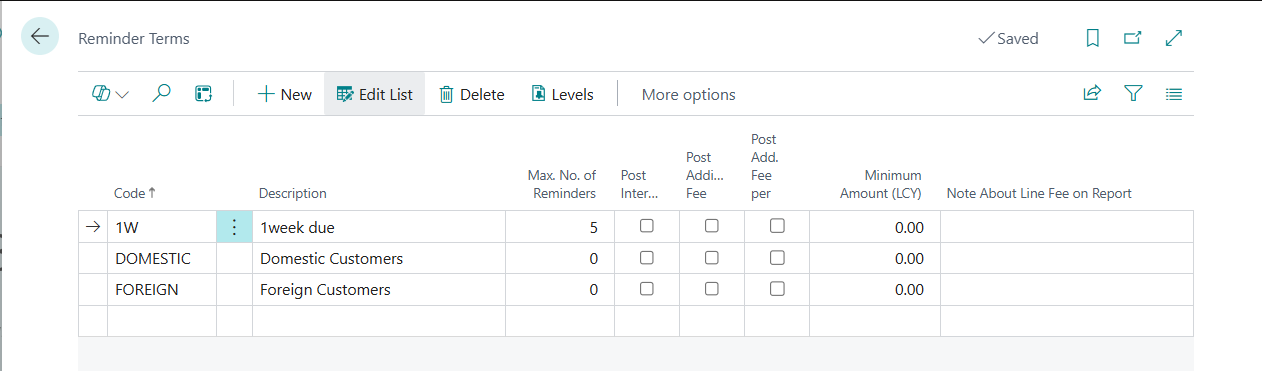
Create a new Reminder Term and configure the required fields according to your company's credit-control policy.
Example Reminder Terms Configuration
| Field |
Example / Value |
Purpose |
| Code |
1W |
Unique identifier for the reminder policy |
| Description |
1 Week Due Reminder |
Identifies the reminder policy |
| Max. No. of Reminders |
5 |
Defines the maximum number of reminders allowed under the policy |
| Post Interest |
Enabled |
Determines whether applicable interest is posted |
| Minimum Amount (LCY) |
5,000.00 |
Prevents reminders for balances below the defined threshold |
For example, if your company does not want to send reminders for small outstanding balances, you can define a Minimum Amount (LCY).
This helps prevent the reminder process from being triggered for insignificant amounts.
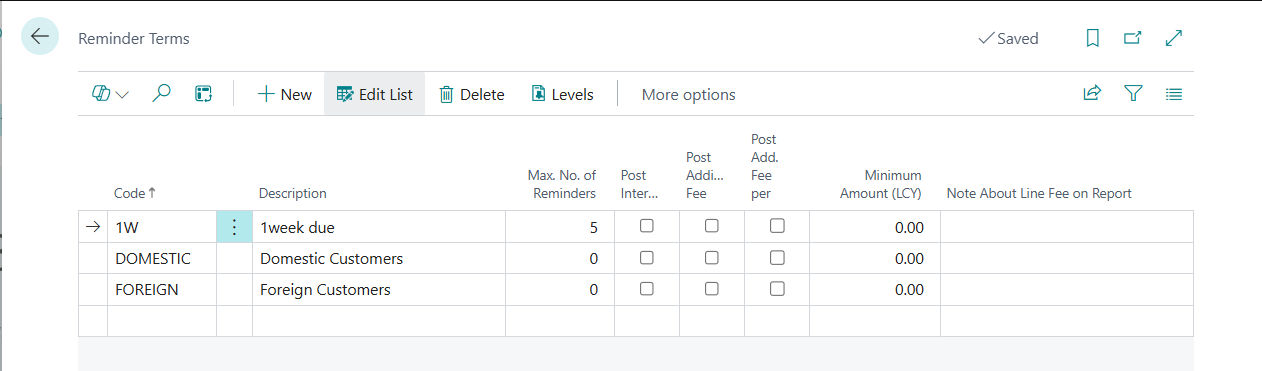
Tip: Set the minimum amount according to your organization's credit-control policy and customer payment practices.
Step 2 — Configure Reminder Levels
After creating Reminder Terms, configure the Reminder Levels.
Reminder Levels determine how the payment reminder process escalates when an invoice remains unpaid.
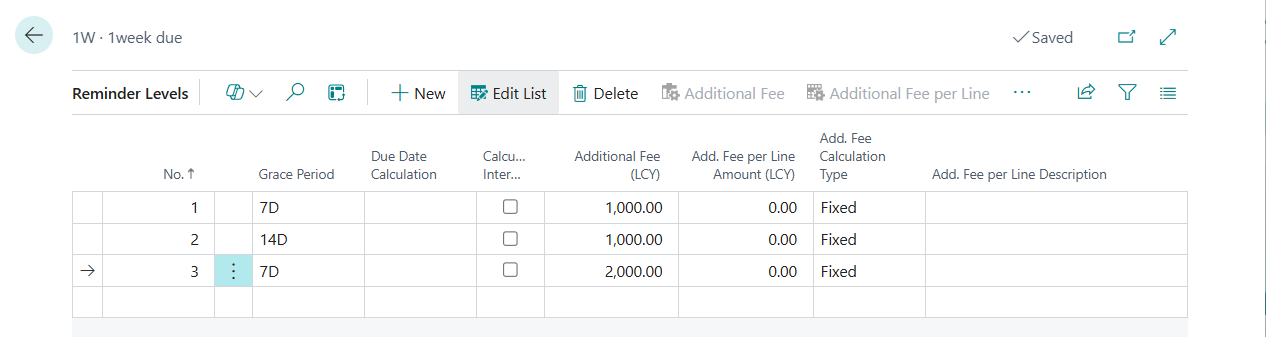
Each level can have its own grace period and applicable additional fee.
How to Configure Reminder Levels
Navigation:
Reminder Terms → Select the relevant Reminder Term → Levels
You can create multiple reminder levels depending on your organization's collection policy.
Example Reminder Level Configuration
| Level |
Grace Period |
Additional Fee (LCY) |
Intent |
| 1 |
7D |
1,000 |
First payment reminder |
| 2 |
14D |
1,000 |
Second reminder/escalation |
| 3 |
7D |
2,000 |
Final reminder / further escalation |
Business Central uses date formula syntax to define periods.
For example:
- 7D = 7 days
- 14D = 14 days
- 2W = 2 weeks
- 1M = 1 month
The reminder schedule should be aligned with your company's payment terms and credit-control process.
Tip: Always confirm reminder intervals, fees, and interest settings with your Finance or Credit Control team before moving the configuration to production.
Step 3 — Assign Reminder Terms to the Customer
Setting up Reminder Terms is only part of the process. The appropriate Reminder Terms Code must also be assigned to the customer.
Without the relevant reminder setup on the customer, Business Central may not generate a reminder for that customer as intended.
How to Assign Reminder Terms to a Customer
Navigation:
Global Search → Customers → Open Customer Card → Payments FastTab → Reminder Terms Code
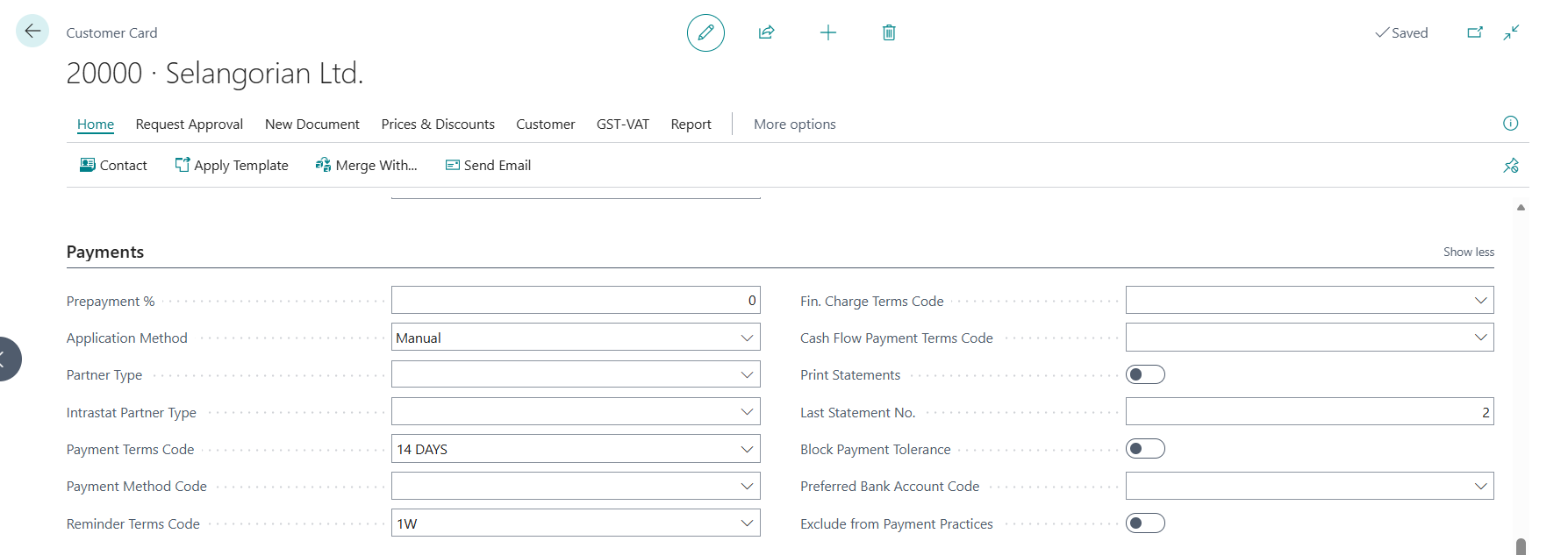
Select the appropriate Reminder Terms Code for the customer.
Why Is Customer Assignment Important?
Different customers may have different payment and credit policies.
For example:
- Customer A may receive a reminder after 7 days.
- Customer B may have a longer grace period.
- Customer C may be subject to different reminder charges.
Assigning the appropriate Reminder Terms Code allows businesses to apply the correct reminder policy to each customer.
Step 4 — Create Payment Reminders
Once Reminder Terms and customer settings are configured, you can create reminders for overdue customer transactions.
How to Create Payment Reminders
Navigation:
Global Search → Search "Reminders" → Open the Reminders page → Select "Create Reminders"
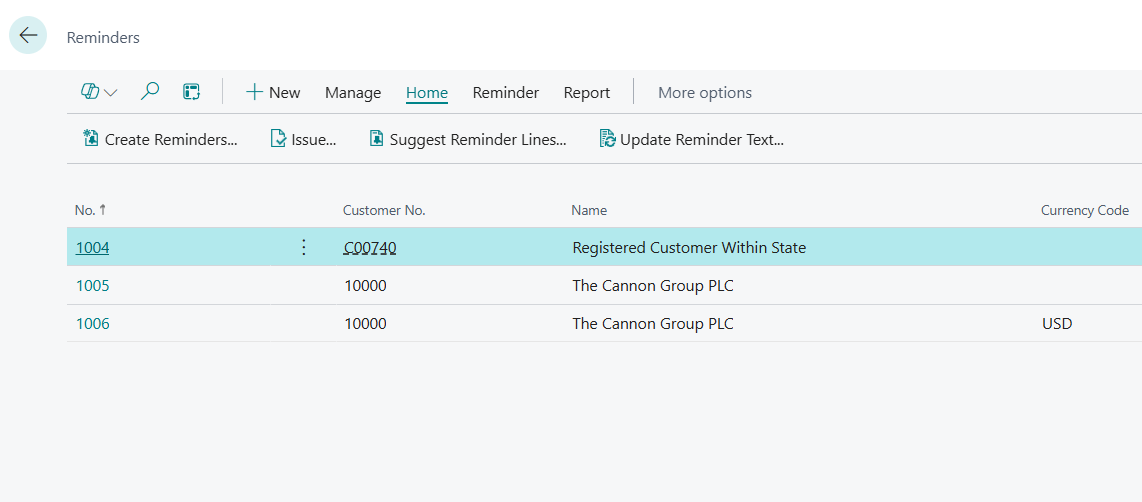
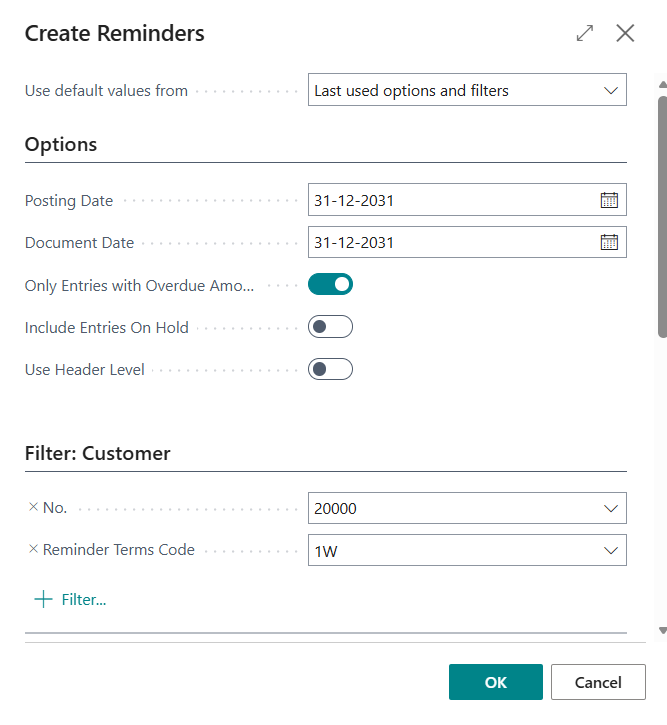
Business Central displays filters that allow you to control which customers and overdue transactions should be considered.
Common Reminder Filters
You can use filters such as:
- Customer No. — Target a specific customer.
- Due Date — Define which overdue transactions should be considered.
- Reminder Terms Code — Apply a specific reminder policy where required.
After selecting the appropriate filters, click OK.
Business Central evaluates the outstanding customer entries against the configured reminder rules and creates reminder documents for qualifying customers.
What Happens When You Create a Reminder?
The system generates a reminder document based on the customer's overdue transactions and applicable reminder configuration.
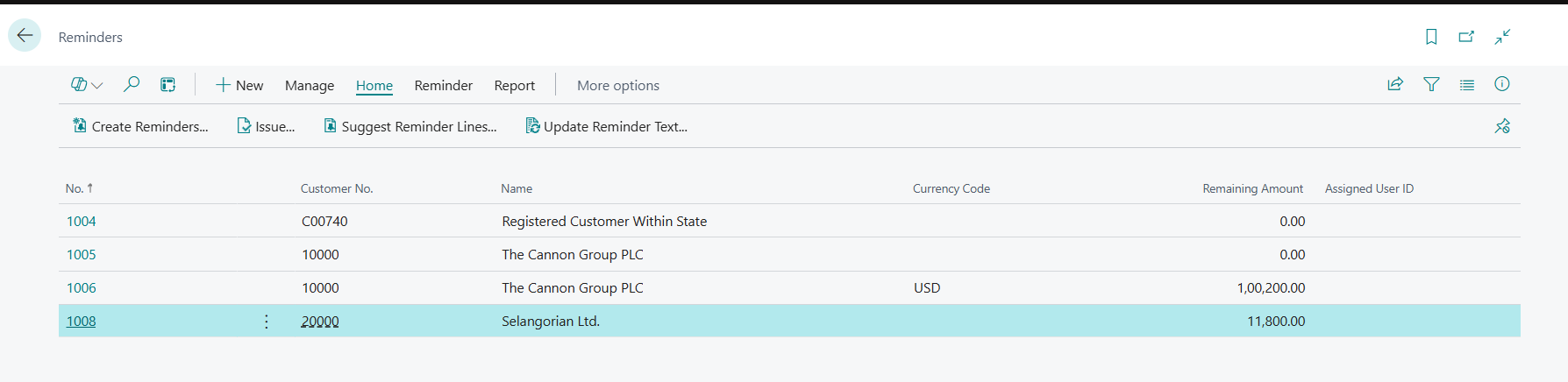
The AR team can then review the generated reminder before issuing it to the customer.
Step 5 — Issue and Send the Payment Reminder
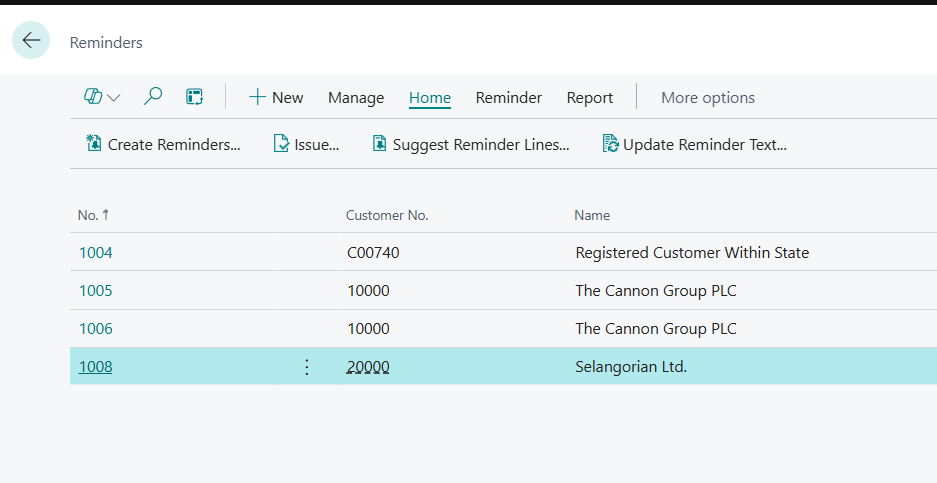
Creating a reminder generates the reminder document, but the next step is to issue the reminder.
Open the relevant reminder and select Issue from the ribbon.
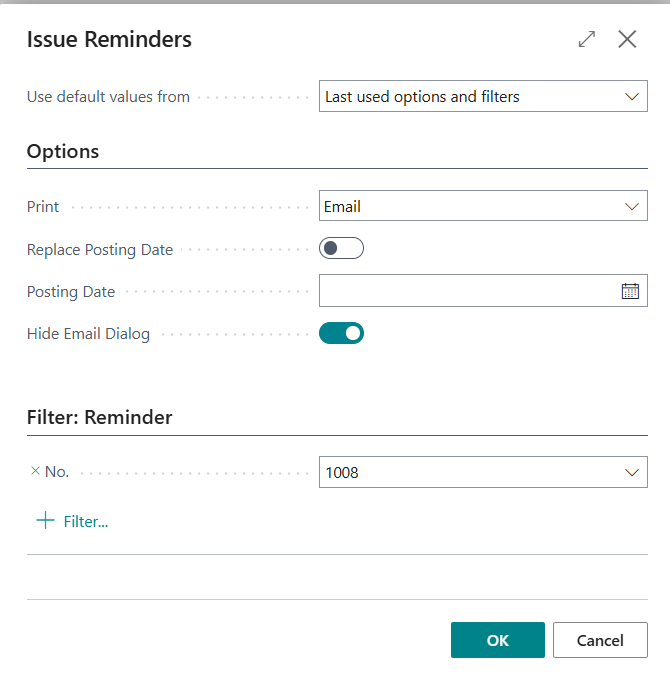
Depending on your configuration, Business Central provides options for processing and sending the reminder.
Payment Reminder Issue Options
| Option |
What It Does |
| Print / Send |
Allows the reminder to be printed or sent through the configured communication method |
| Replace Posting Date |
Allows the posting date to be overridden where required |
| Hide Email Dialog |
Allows email processing without opening the email dialog for every reminder |
For larger reminder batches, Hide Email Dialog can reduce repetitive manual interaction.
For high-priority customers, the AR team may prefer to keep the email dialog available so the reminder can be reviewed or personalized before sending.
Once the reminder is issued, applicable interest or fees are processed according to the configured reminder setup and posting rules.
How to View Issued Reminders
To review previously issued payment reminders:
Navigation:
Global Search → Search "Issued Reminders" → Open the page
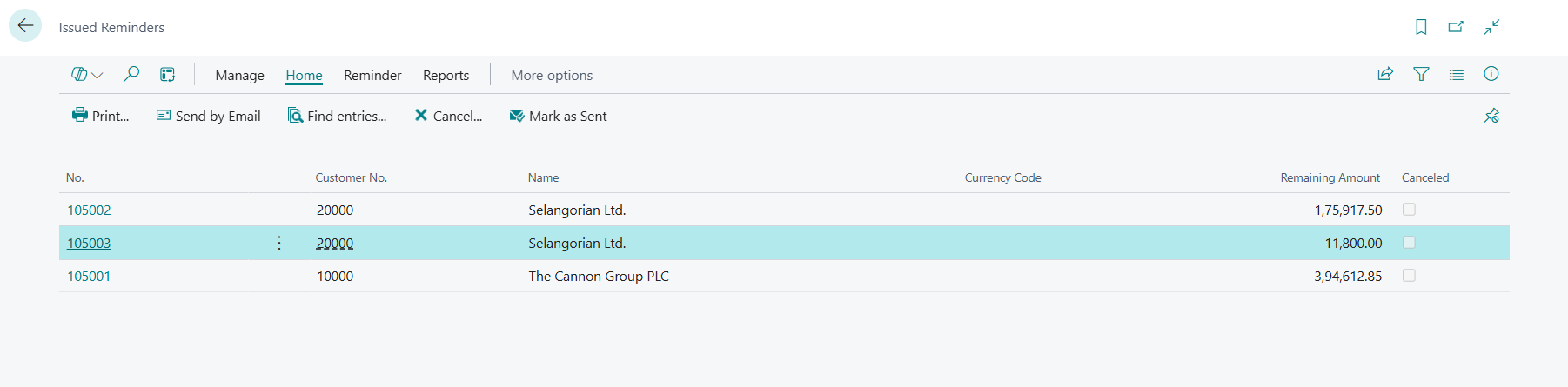
This allows your finance team to review reminders that have already been issued.
Business Central Payment Reminder Validation Checklist
Before using automated payment reminders in a live environment, test the configuration with representative customer scenarios.
1. Customer Without Reminder Terms
Verify how customers without an assigned Reminder Terms Code are handled.
2. Outstanding Amount Below Minimum Amount
Confirm that balances below the configured Minimum Amount (LCY) are handled according to your reminder policy.
3. Reminder Level Escalation
Verify that subsequent reminder levels are triggered only after the appropriate conditions and grace periods have been met.
4. Customer Email Address
Confirm that the correct customer email address is configured before sending reminders.
5. Email Processing
Test email delivery with a small group of customers before processing a large reminder batch.
6. Interest and Additional Fees
If your organization uses interest or additional fees, verify the calculations and posting results before going live.
Benefits of Automating Payment Reminders in Business Central
A structured payment reminder process can help Accounts Receivable teams:
- Reduce manual overdue-payment follow-ups
- Standardize customer collection processes
- Reduce dependency on Excel trackers
- Apply consistent reminder policies
- Escalate reminders based on predefined rules
- Improve visibility into overdue customer balances
- Maintain a record of issued reminders
- Reduce repetitive administrative work
Instead of manually tracking every overdue invoice, your finance team can use Business Central to apply predefined reminder rules consistently.
Frequently Asked Questions About Payment Reminders in Business Central
What are payment reminders in Business Central?
Payment reminders in Microsoft Dynamics 365 Business Central are used to notify customers about overdue payments. Businesses can configure reminder terms, levels, grace periods, minimum amounts, interest, and applicable charges according to their collection policies.
How do I set up payment reminders in Business Central?
To set up payment reminders, configure Reminder Terms, define Reminder Levels, assign the appropriate Reminder Terms Code to customers, create reminders for overdue transactions, and then issue the reminders.
What are Reminder Terms in Business Central?
Reminder Terms define the overall rules for a customer payment reminder policy. They can include settings related to reminder levels, minimum amounts, interest, and other applicable reminder conditions.
What are Reminder Levels in Business Central?
Reminder Levels define the different stages of the reminder process. Each level can have its own timing, grace period, and applicable charges, allowing businesses to escalate payment communication as invoices remain overdue.
Can Business Central send payment reminders by email?
Yes. Business Central supports sending reminders through configured email capabilities. The exact process depends on the Business Central version, email setup, and communication configuration used by the organization.
Can Business Central payment reminders include interest or fees?
Yes. Reminder settings can be configured to apply interest and/or additional charges where applicable. Businesses should validate these settings against their contractual payment terms, accounting policies, and applicable regulations before enabling them.
Final Takeaway
Stop spending hours manually chasing overdue payments.
With Microsoft Dynamics 365 Business Central payment reminders, finance teams can establish reminder policies, configure escalation levels, identify overdue transactions, and issue customer reminders through a structured process.
The complete workflow is simple:
Reminder Terms → Reminder Levels → Customer Assignment → Create Reminders → Issue & Send
When configured correctly, Business Central can help make your Accounts Receivable and collections process more consistent, structured, and efficient.
If your organization is looking to automate finance processes or improve its ERP capabilities, Microsoft Dynamics 365 Business Central can provide a strong foundation for streamlining day-to-day financial operations.