Automating Overdue Payment Reminders in Business Central
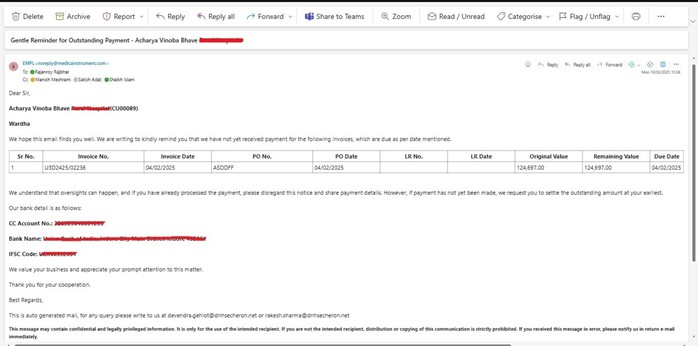
In business, maintaining a smooth cash flow is crucial, and timely payments from customers play a significant role in achieving this. As a Business Central technical consultant, I recently developed an automated email reminder system using a Codeunit to notify customers about overdue invoices. This blog post will walk you through the process and share insights into its implementation.
The Objective
The goal was to create an automated process that:
Identifies overdue invoices based on a predefined grace period.
Sends a structured email reminder to customers with pending invoices.
Formats the email in a professional and readable manner.
Solution Implementation
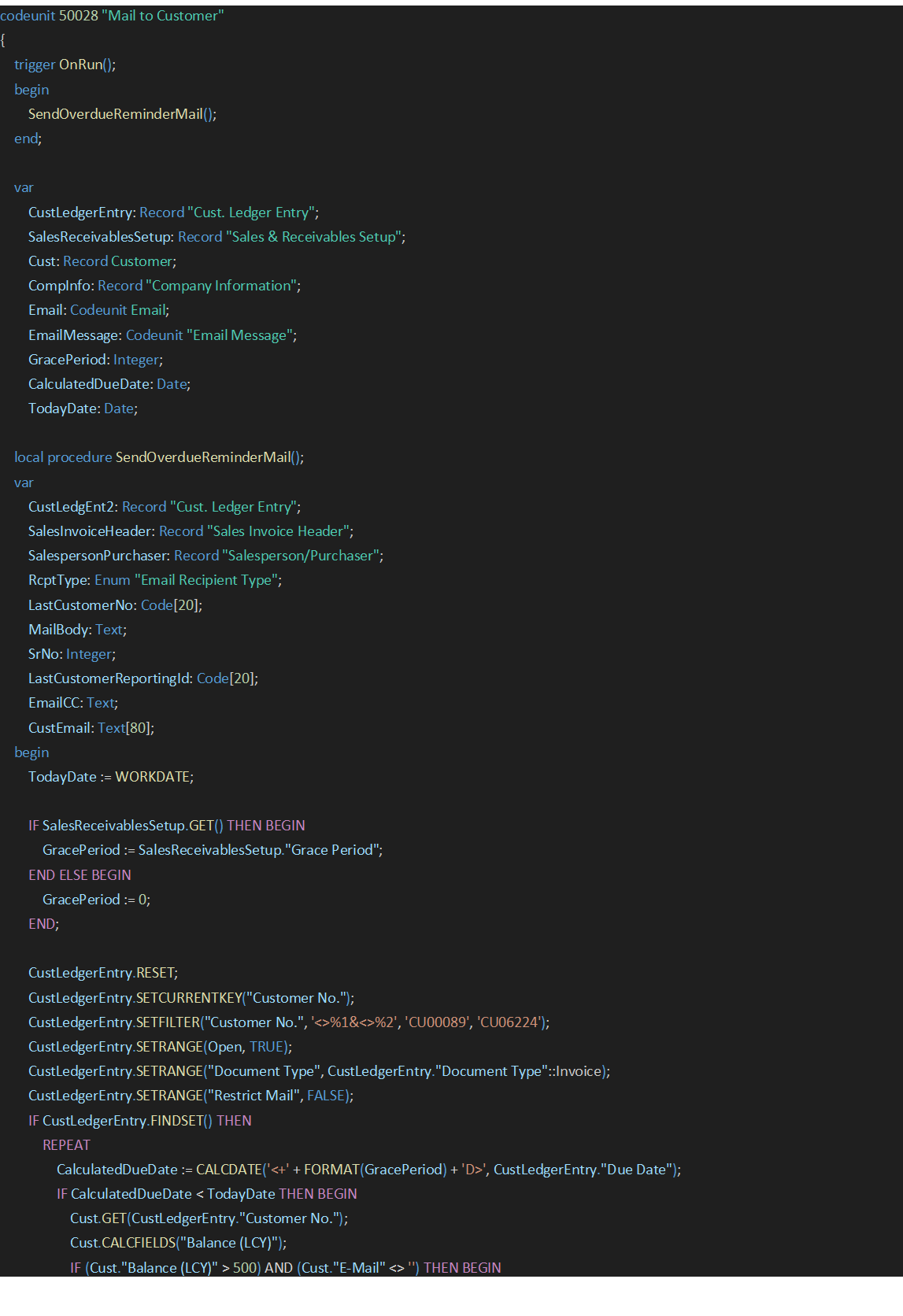
I developed a Codeunit "Mail to Customer", in Business Central that fetches overdue invoices and sends email reminders to customers. Below is a breakdown of the approach.
1. Fetching Invoices
The Codeunit retrieves customer ledger entries where invoices remain open past the due date, factoring in a grace period from the Sales & Receivables Setup. To ensure meaningful communication, reminders are sent only to customers whose outstanding balance exceeds a predefined threshold (e.g., 500 LCY).
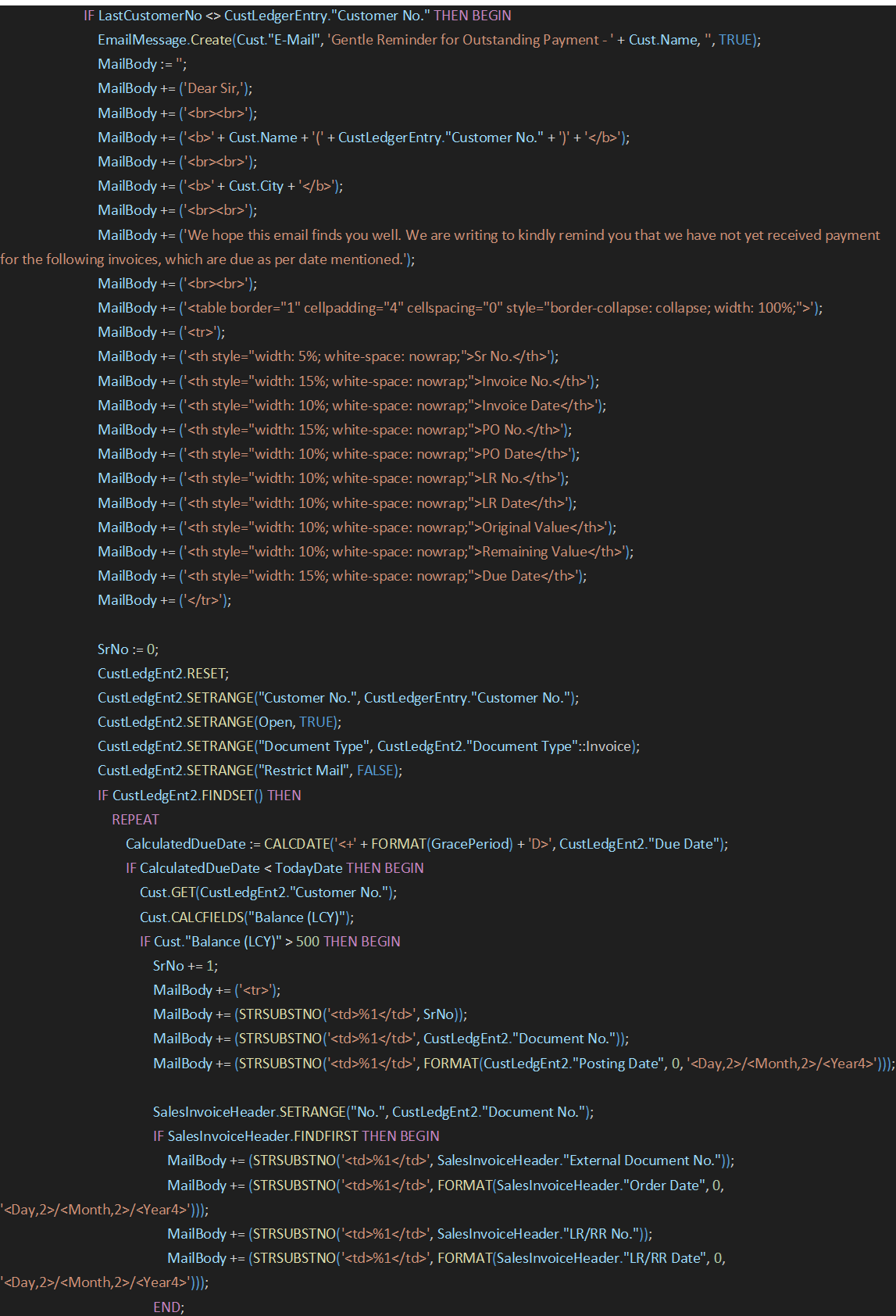
2. Formatting the Email Body
The email contains a well-structured HTML table displaying key invoice details, such as:
Invoice Number
Invoice Date
Purchase Order Details
Original & Remaining Amounts
Due Date
3. Sending the Email
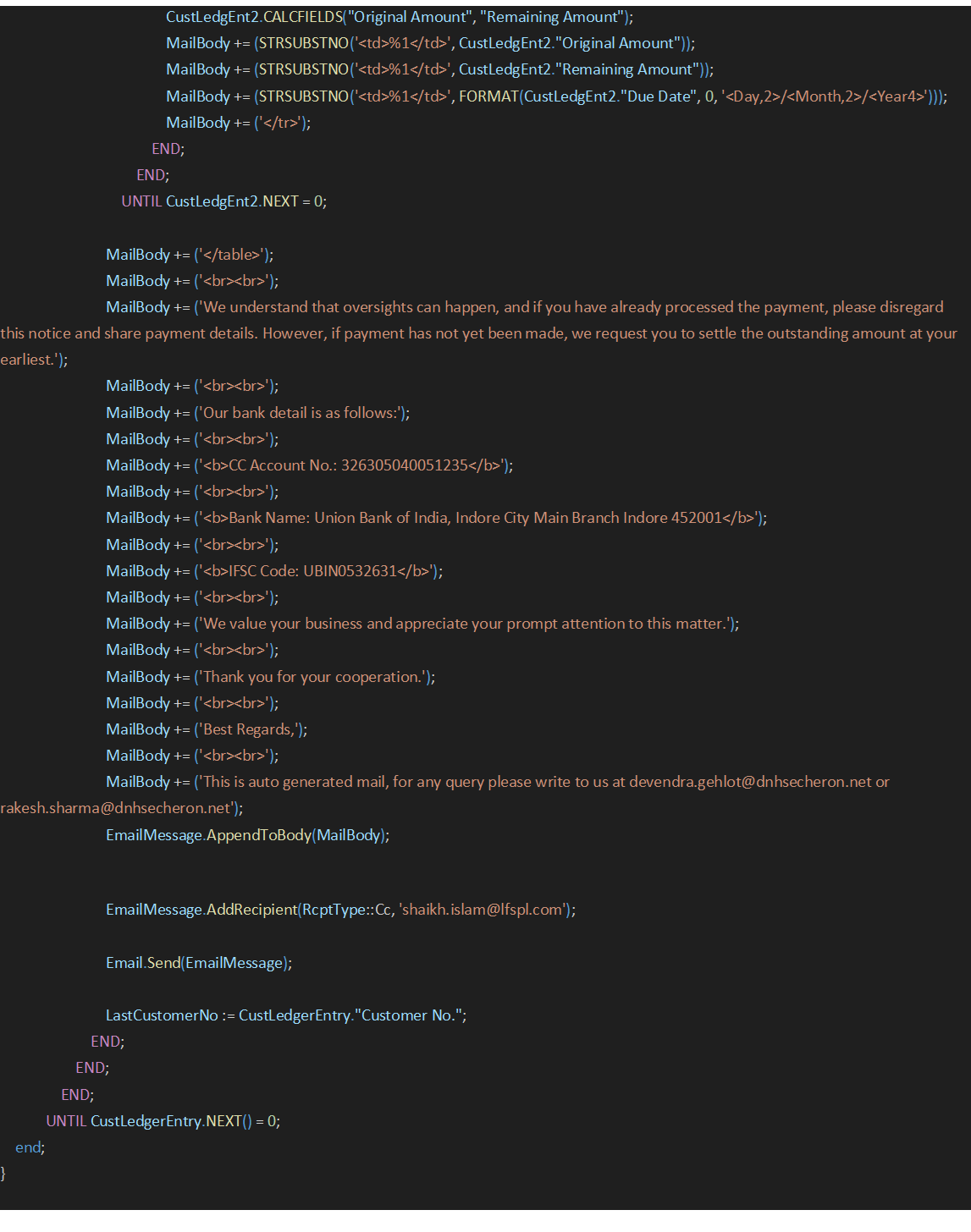
Once the email body is constructed, the system sends the reminder using the EmailMessage and Email Codeunits.
Source Code:
 Customer Ledger Entries:
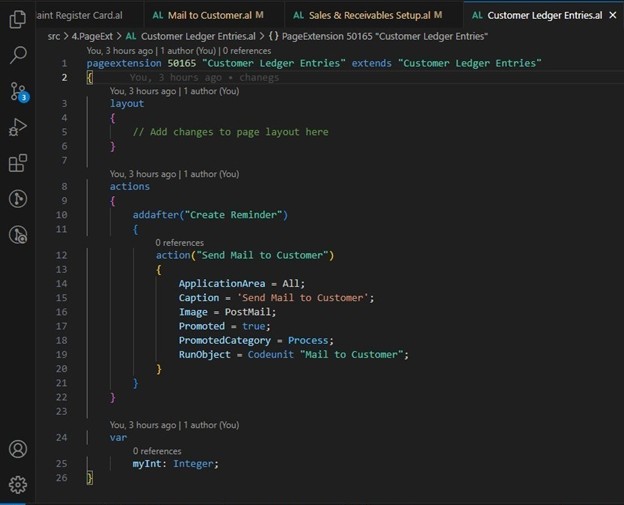
We will add the action button, by name “Send Mail To Customer” on Customer Ledger Entries List page.
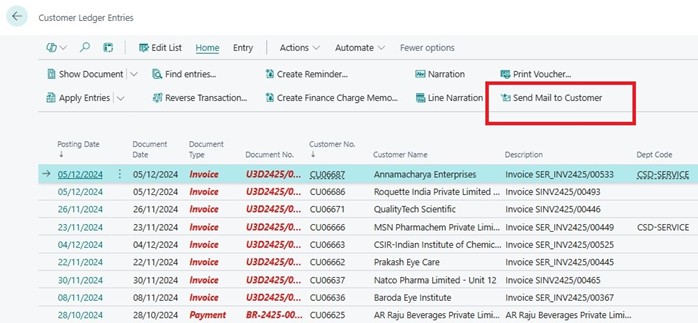
On Customer Ledger Entries List page our action button will be visible as follows:
Email Notification:
Upon clicking the action button, an email is sent to the customer with a detailed breakdown of overdue invoices.