Working with Assembly order in Business Central.
Many Companies sell/supply products to customers by combining different components without using manufacturing features which are available in Business central.
Assembly item is basically a sellable item which contains an assembly BOM. We can say that the Assembly orders are internal orders, which are similar to production orders. We use assembly orders for managing the assembly process and to fulfil sales requirements with or without warehouse activities. These involve both output and consumption when posting. We can view that Assembly order headers resemble to output journal lines. Assembly order lines resemble to consumption journal line.
In this blog we will briefly discuss about Assembly Bom. Here in this blog we will create an Assembly Bom for an item to understand it better.
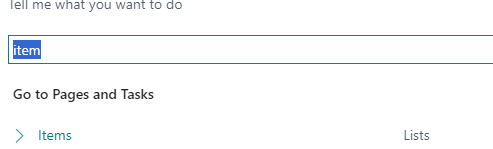
Search the item.
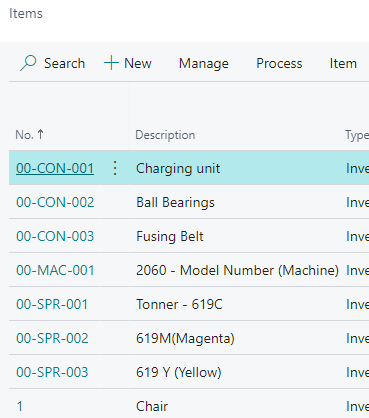
Item list will open
We select an item “Test-001” for which we are going to create assembly BOM. First, we go to “Replenishment” Tab.
We can see that we must do some basic setups like
Replenishment System should be Assembly.
Assembly Policy can be “Assemble to Stock” or “Assemble to Order” according to requirement.
Here we can also see that Assembly Bom is “No” .

For reference let us assume that we want to create Assembly Bom for this item then we can create same from here by clicking on the link, when we click on it a new window will open.

Here we can see that we can use “Item” or “Resource” or Both in the BOM. In “Type” field after that we fill the details.
The filled items are used to create the Finished item. The Quantity per field defines that how much quantity is required to Make single unit of finished item. In above example we see that there are three items used to create finished item, we can also see that in the quantity Per field we had defined the quantity for making single unit of finished good.

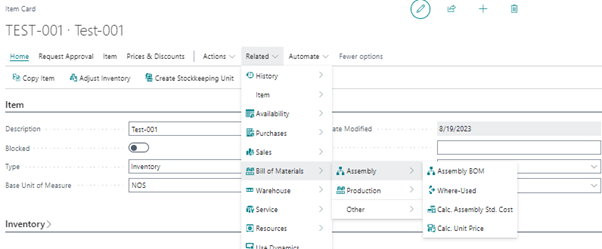
We can View our Assembly BOM structure and other details from
Related> Bill of Materials> Assembly> Assembly Bom
Please make a note that “ We can’t reuse assembly BOMs to more than one item”.