Interaction management can be used to maintain all communication between our company, customer and vendor and using this functionality we can directly send mail which can include related documents such as Product document, sales quote, letter and many more. Also, Interaction management in Business Central encompasses various aspects, including:
Customer Relationship Management (CRM): Tracking customer interactions, managing sales opportunities, and maintaining customer data to enhance service and support.
Sales and Marketing Integration: Coordinating sales efforts with marketing campaigns to ensure aligned messaging and effective lead management.
Document Management: Organizing and storing communications, proposals, and contracts to streamline access and improve collaboration.
Task and Activity Tracking: Assigning and monitoring tasks related to interactions, ensuring timely follow-ups and improved responsiveness.
Reporting and Analytics: Utilizing data to analyze interaction trends, measure performance, and make informed decisions to improve customer satisfaction.
Integration with Other Tools: Connecting with email, social media, and other platforms to facilitate seamless communication across channels.
Process
Suppose our salesperson Received a new lead from amazon and our management want to log all entries in Business central. So, considering the above scenario we will create interaction for amazon on contact card.
Create contact Card under amazon as depicted below.
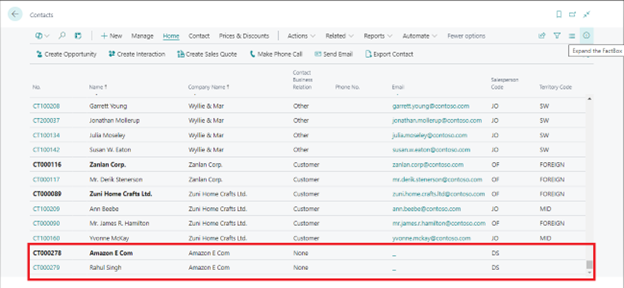
Once the user creates a contact card and user wants to drop a mail to lead which includes company profile and product details. Users can create a interaction as mentioned below.
Click on Create interaction > Select integration Template code
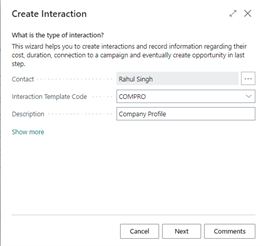
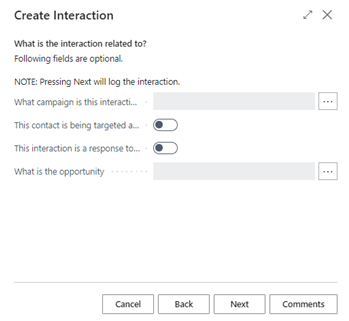
Click on Next > user can mark if this interaction is part of campaign or response to campaign as depicted below.
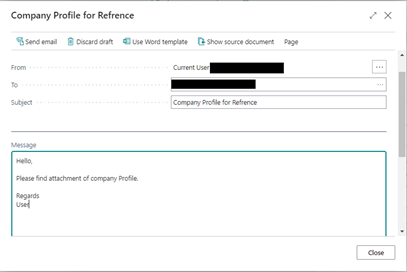
Once user click on Next system will open email box with company profile attached to it as depicted below
Once email send user can define evaluation depending on interaction as depicted below.
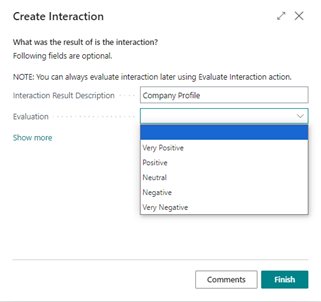
Once user click on finish system will show that interaction on contact history card as depicted below.
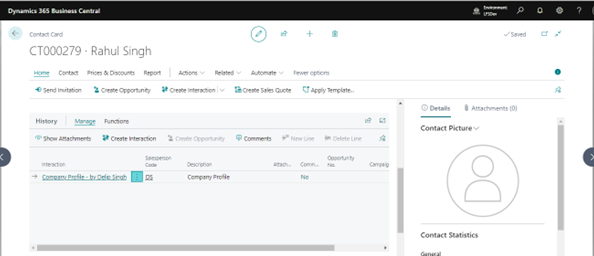
Same as above way user can create multiple interaction with contact and keep track of it in business central.
Configuration
Interaction Templates
User can predefine all interactions in interaction templates screen which is going to be used while logging interaction in Business central. On template user can define interaction group, language, word template (can used in email), Attachment, Unit cost (for process), Duration, Information flow (inbound or outbound), initiated by and campaign details if available.
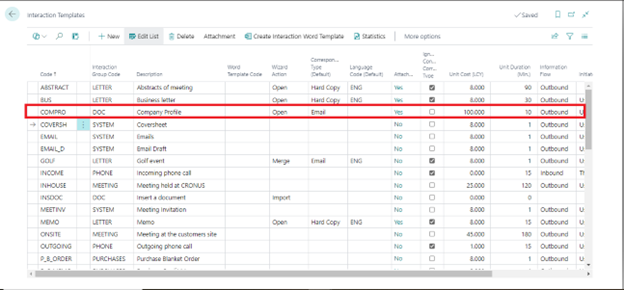
Interaction Templates setup
Users can predefine interactions on interaction Template setup as depicted below.
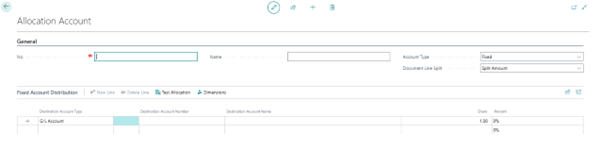
Interaction Groups
User must create an interaction group which can be used in interaction template while creating new interaction as depicted below.
Campaign
Users can assign campaign while defining interaction in interaction template (Optional).
Word Template
Users can create a word while defining interaction in the interaction template (Optional).
Reports
Interaction group Statistics
Interaction group statistics show how many interactions created against that group with total cost and durations as depicted below
Interaction Template Statistics
Interaction Template statistics show how many interactions created against that Template with total cost and durations as depicted below
Interaction Log Entries
Interaction Log Entries show all the interactions created in Business central with all the details such as Date, Contact name, Evaluation etc. Also, user can cancel and delete interactions from interaction log entries.
